
Edit pages of the website
Here's how to fill your website's homepage, menu, about us, contact, gallery and FAQ with content.
You can open each page in the overview under Website → Pages using the pencil icon. Save your changes by clicking Save. They will appear on the published website after about a minute.
Prerequisite: The website belongs to the Max tariff.
Homepage
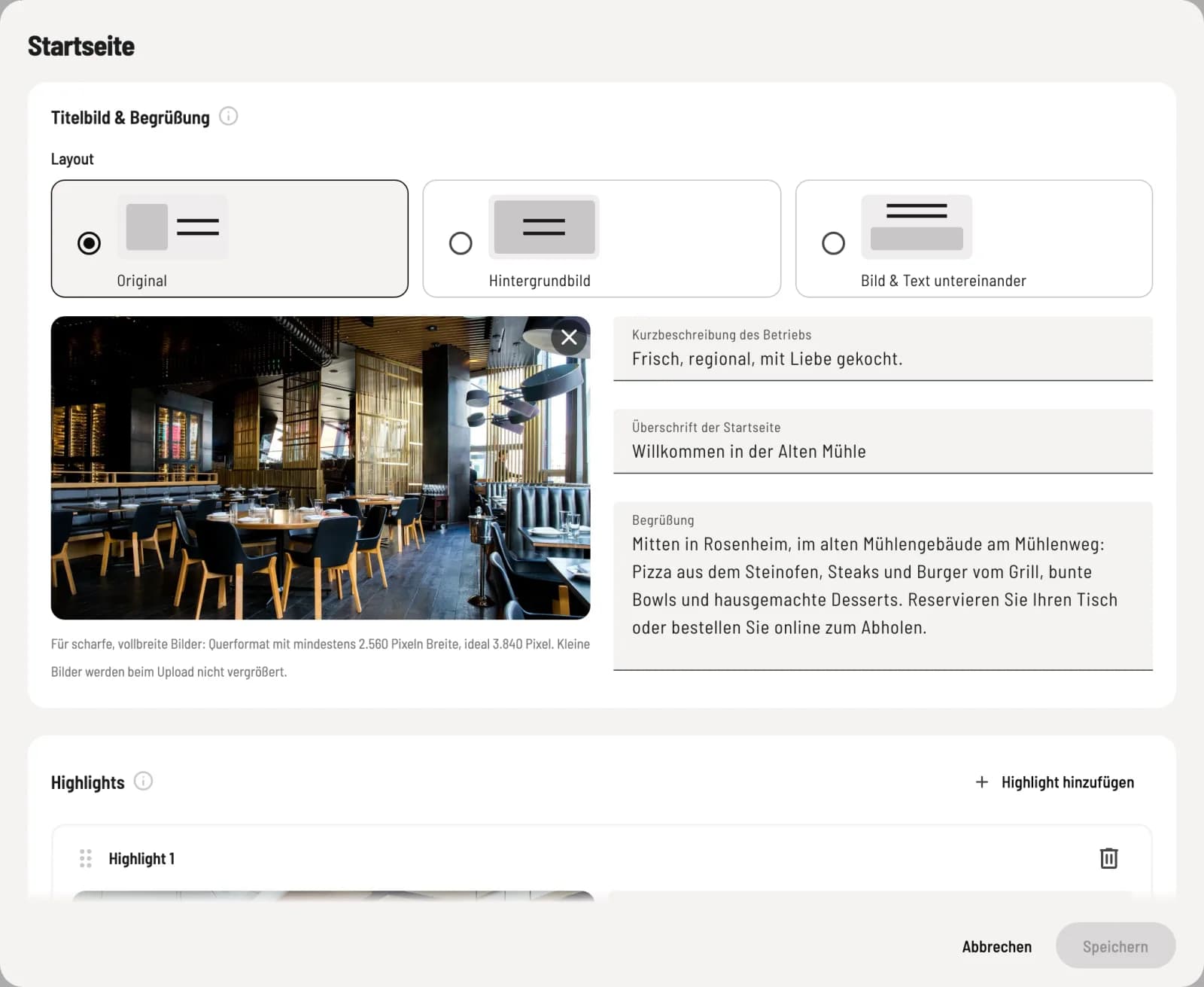
Cover image & welcome
Under Layout, choose Original, Background Image, or Image & Text Stacked and upload a cover image. Below that, enter Short Description of the Business, Homepage Heading, and Welcome Message.
For a sharp cover image, use a landscape format with a width of at least 2,560 pixels. The short description summarizes your business in one sentence and also appears as the page title and in search engines. Under Highlights, you can present offers with an image, title, and description using Add Highlight. You can change the order by dragging the dot icon; the trash can icon removes an entry. The homepage is Always Active.
menu
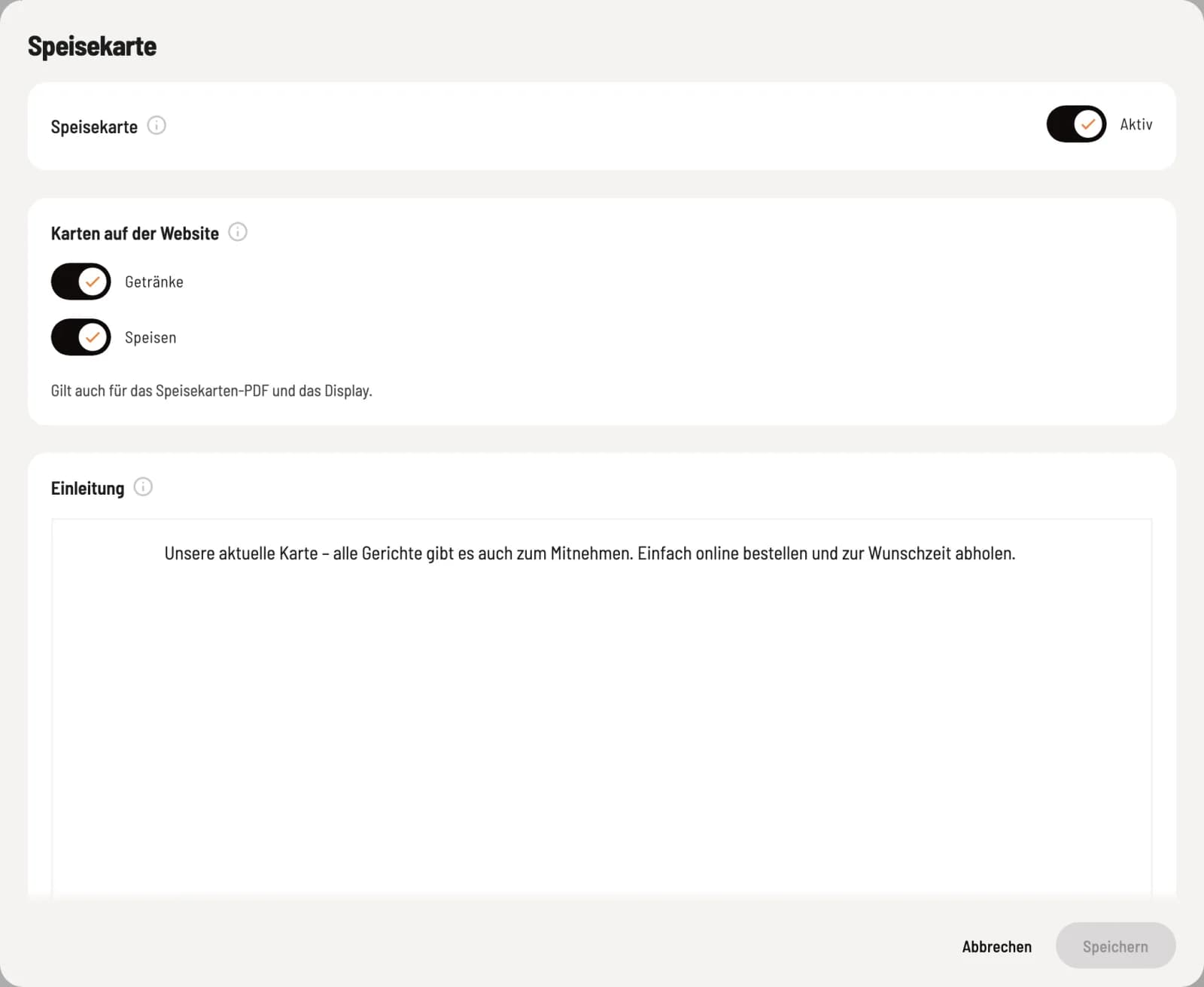
Maps on the website
Under Menu Options on the Website, you can select which menus are displayed. This selection also applies to the menu PDF and the display in the restaurant. Under Introduction, text appears above the menu.
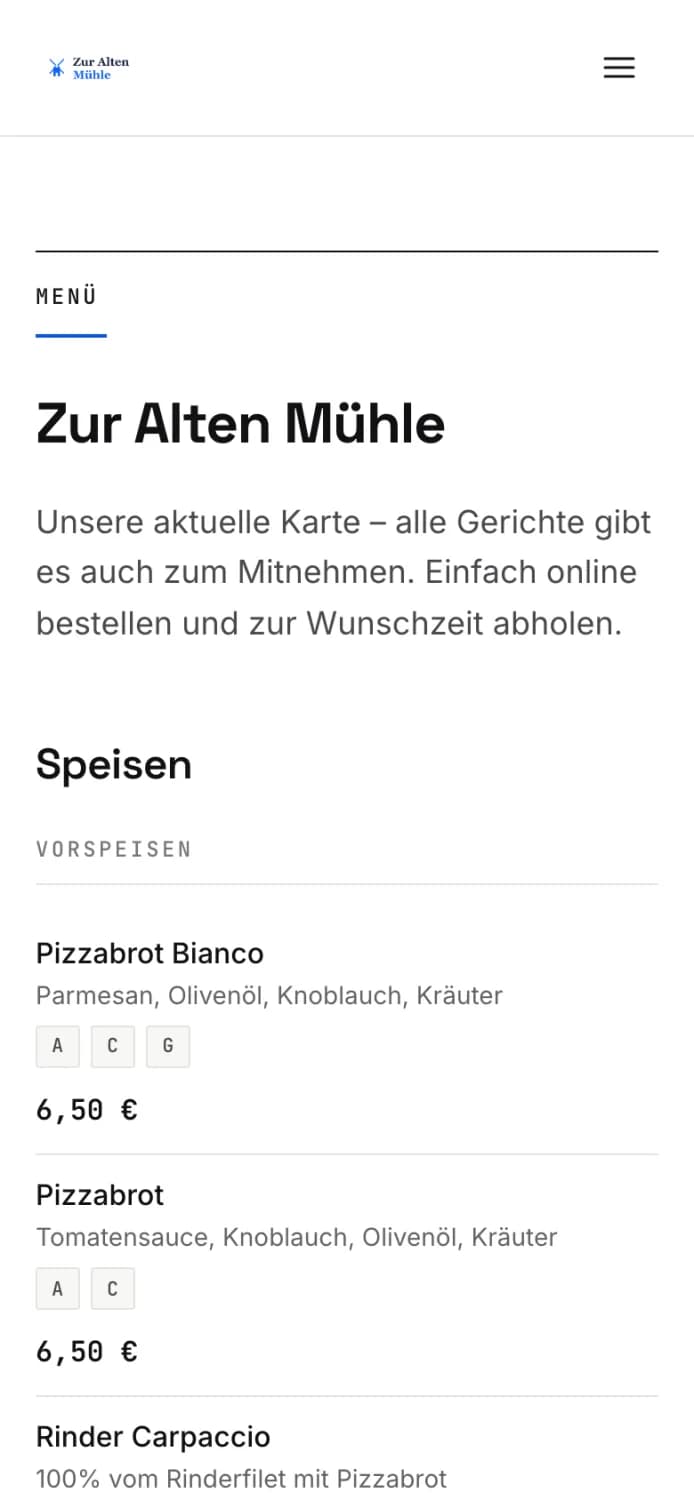
You can manage item, prices, and allergens as usual under Menu. The website always displays the most up-to-date information. See also Menu Generator (PDF) and Setting up a Menu Display.
About us, Contact, Gallery, FAQ
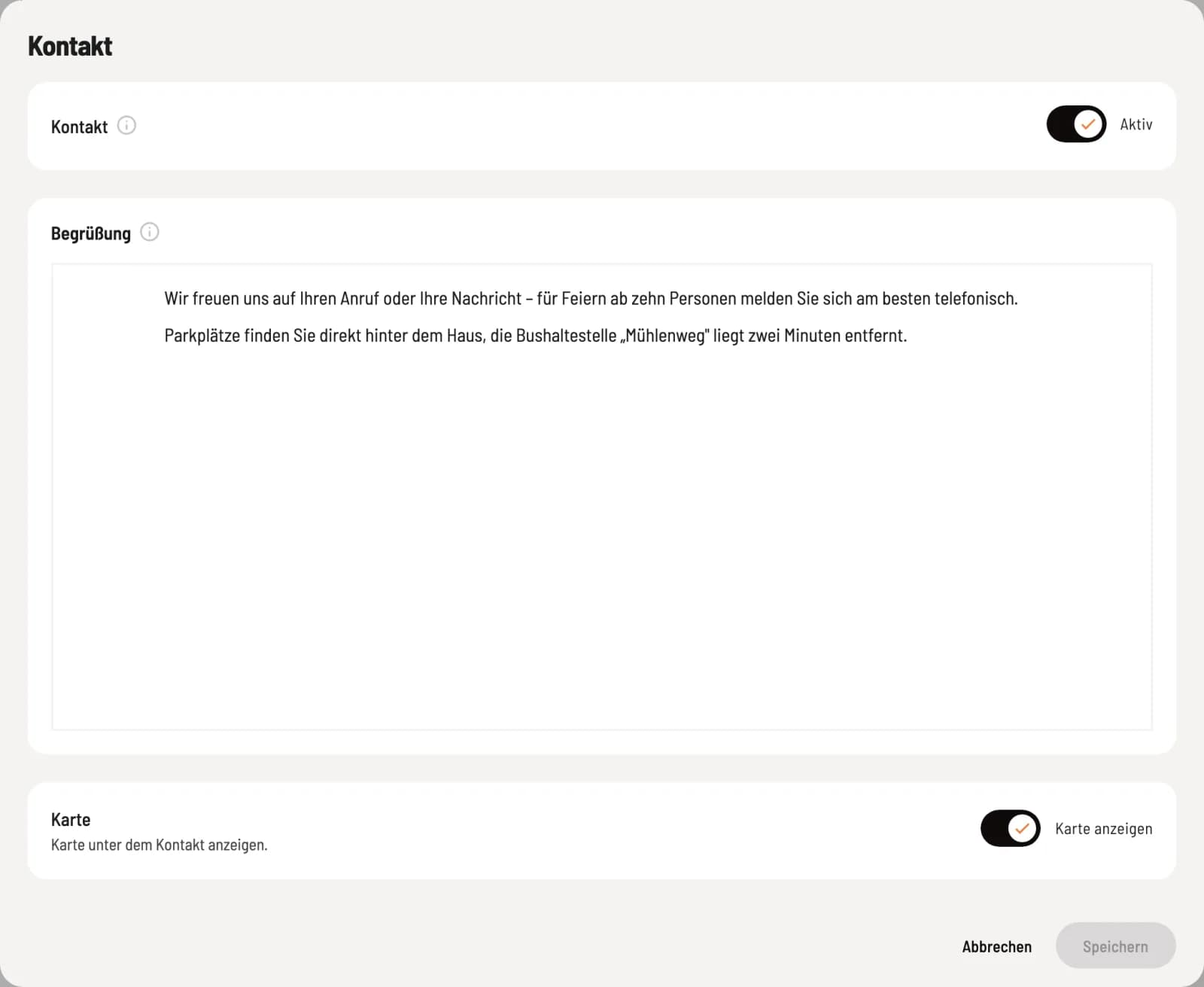
Step 1 of 2
contact
At the top, you write the greeting. Show map displays a map below the contact. Under Social Media, you enter the complete links to Instagram, Facebook, and TikTok.
Step 2 of 2
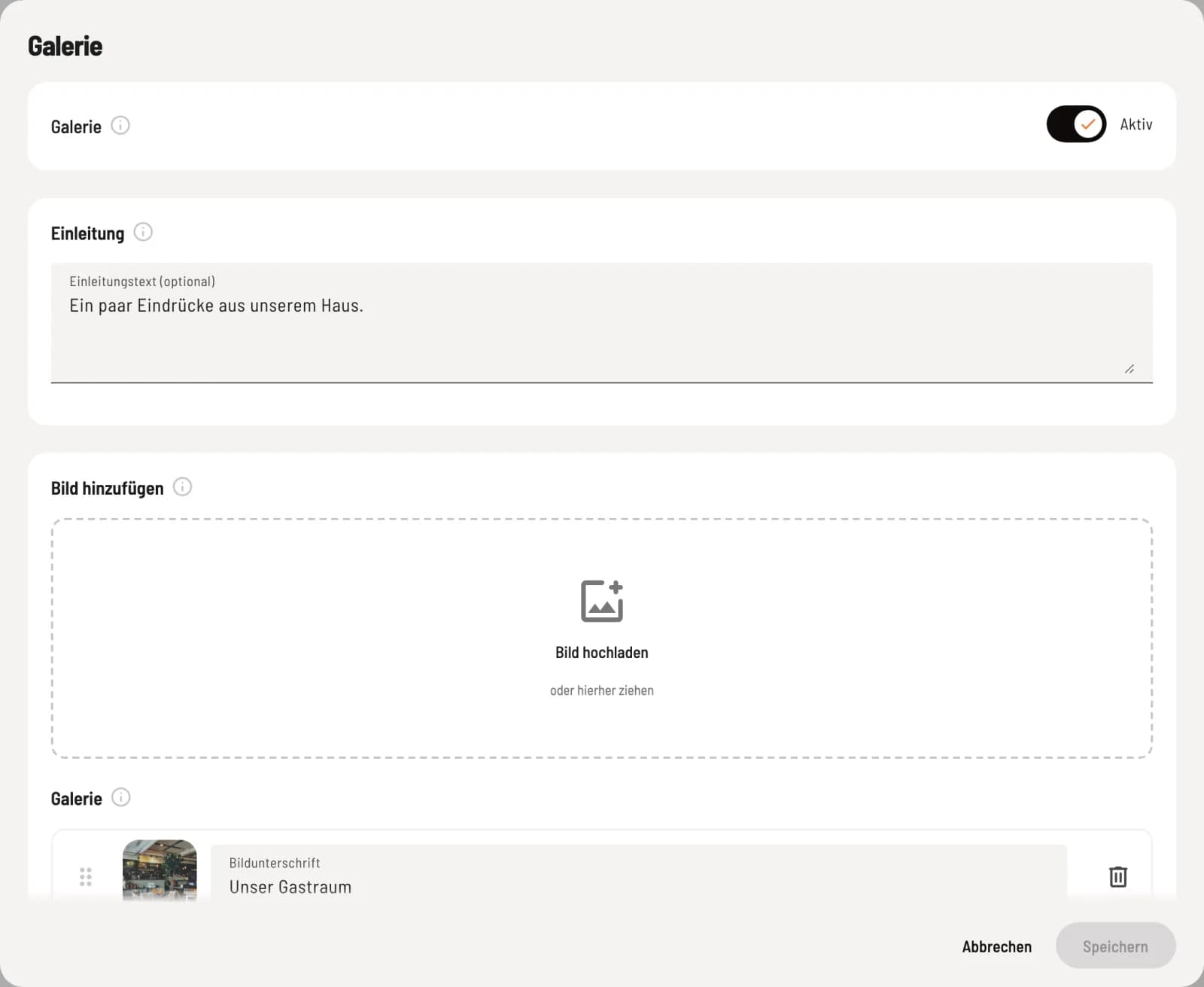
gallery
Upload images under Add Image; they will be automatically resized. Under Gallery, you can add captions and drag images into the desired order.
About Us – Image and headline, your story, and the team with photo, name, and role (Add Person). No employee accounts will be created for this.
Contact – Address, telephone, email and opening hours are taken from the restaurant's settings: Edit address, company details and contact information, opening hours.
FAQ – Use Add Entry to create a question and answer.
Each of these pages has an Active switch at the top. When switched off, the content remains, but the page does not appear on the website.
If you offer the website in English, a language bar will appear at the top of the dialog. Here's how: Publish your website.