
Change website design
This is how you choose the template, color, font and logo for your website.
The design determines how your website looks. All content is retained when switching designs.
Prerequisite: The website belongs to the Max tariff.
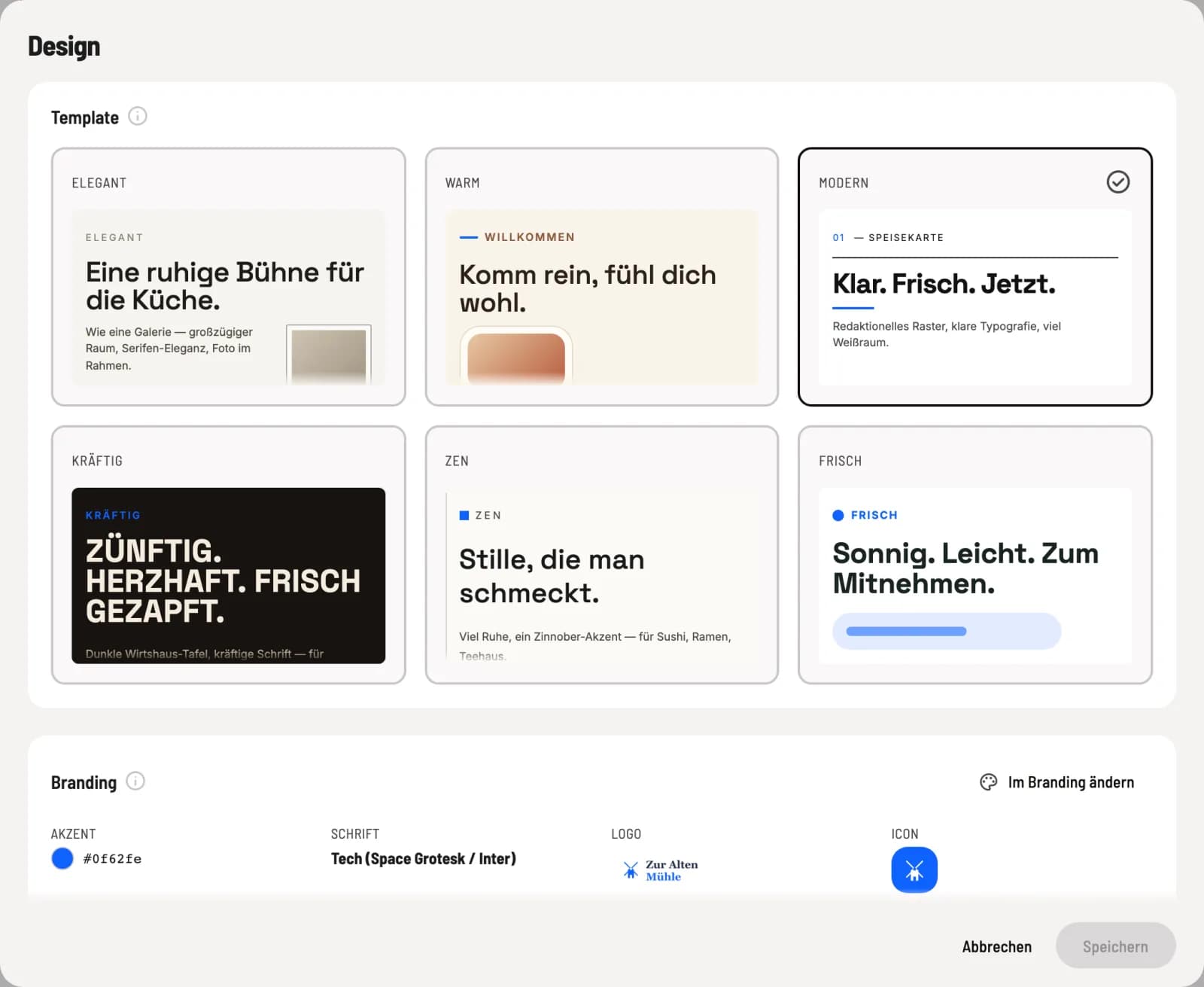
Edit design
In the overview, under Design, click on Edit Design. Under Template, select one of six designs and click on Save.
Elegant – spacious, with serif font and framed photo.
Warm – warm paper, soft shapes, inviting.
Modern – clear grid, plenty of white space.
Bold – dark pub sign, bold lettering, for example for beer garden, brewery or grill.
Zen – lots of peace and quiet, a splash of color, for example for sushi, ramen or teahouse.
Fresh – bright, round, cheerful, suitable for cafes, brunches or juice bars.
Color, font, logo and icon
Under Branding you'll see Accent, Font, Logo, and Icon. These apply to the entire restaurant, including the order page, guest account, and embedded content. Change in Branding opens the central settings under Settings → Restaurant → Branding; there you can separately define colors, fonts, and the brand logo.
After switching devices, also open your website on mobile devices. Most visitors view it there.