
Create your own pages and building blocks
This is how you can add more pages to your website, for example for celebrations, lunch menus or online ordering.
In addition to the fixed pages, you can create as many of your own pages as you like, e.g., "Celebrations & Events" or "Lunch Menu". Each page consists of blocks containing text and images or data from Servire.
Prerequisite: The website belongs to the Max tariff.
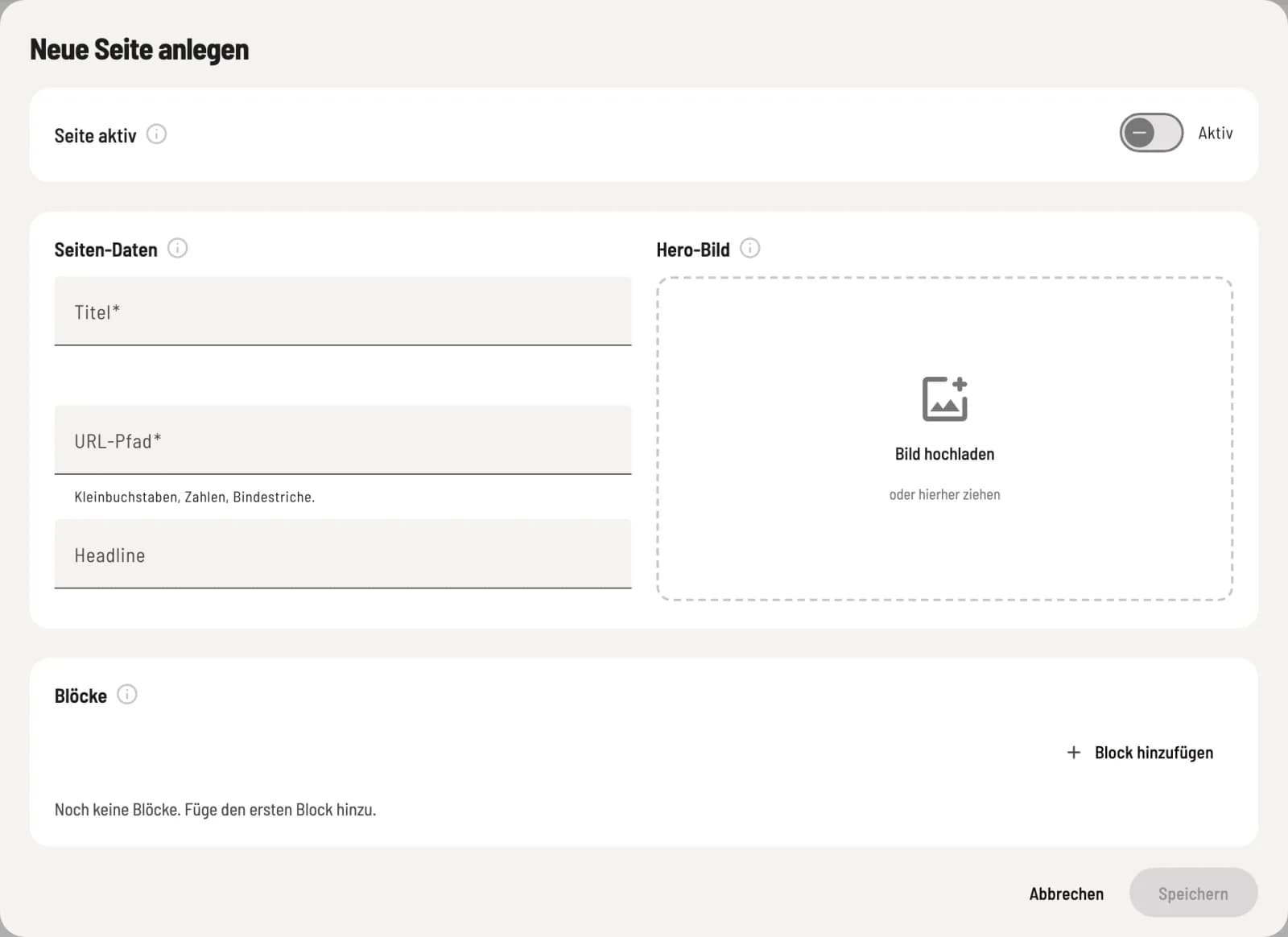
Create a new page
In the overview under Pages, click on New Page. Under Page Data, enter Title, URL Path (lowercase letters, numbers, hyphens) and a Headline, and upload a Hero Image if desired.
New pages are initially inactive. Enable Page Active so guests can see them. If you later change the URL path, previously shared links will no longer work.
Blocks
Under Blocks you can add content using Add Block:
- Text/Image Block – Text with an image. Under Image Position, you can choose Top, Bottom, Left, or Right. Inverted Background makes the block stand out in color.
- Data Block – displays something from Servire under Data Type: ** menu**, Opening Hours, Reservation CTA, Voucher CTA, or Order CTA. A CTA is a box with a button that leads to a reservation, voucher purchase, or order.
Expand a block for editing, drag it to a different location using the dot symbol, or remove it via the trash can.
Duplicate or delete page
In the overview, ⋯ opens Edit, Duplicate, and Delete next to a separate page. The copy is named "(Copy)" and is inactive. Delete removes the page completely after a confirmation prompt, Activate only hides it.