
Download invoice with company address and business meal receipt
This is how you upload an invoice retroactively in the Web desk, including the guest's address and details of the hospitality.
If a guest needs an invoice for their company or a business meal receipt after their visit, you create it in the Web desk. The details are only included in the downloaded PDF file. The receipt itself and the TSE(Technical Security Device) data remain unchanged.
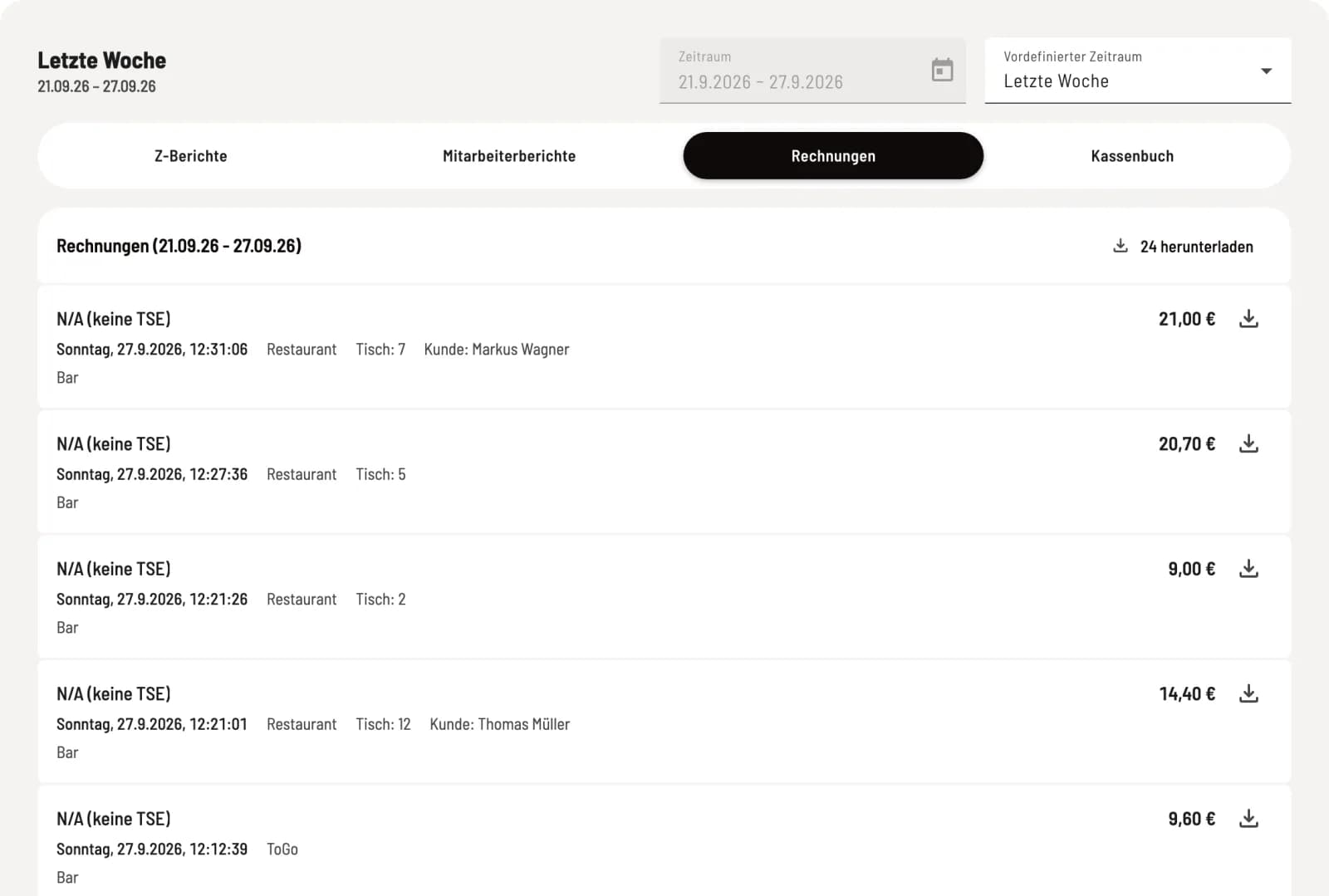
Step 1 of 3
Search invoice
Open Receipts → Invoices and select the period in which the guest paid. Click the download icon Download Invoice to the right of the amount.
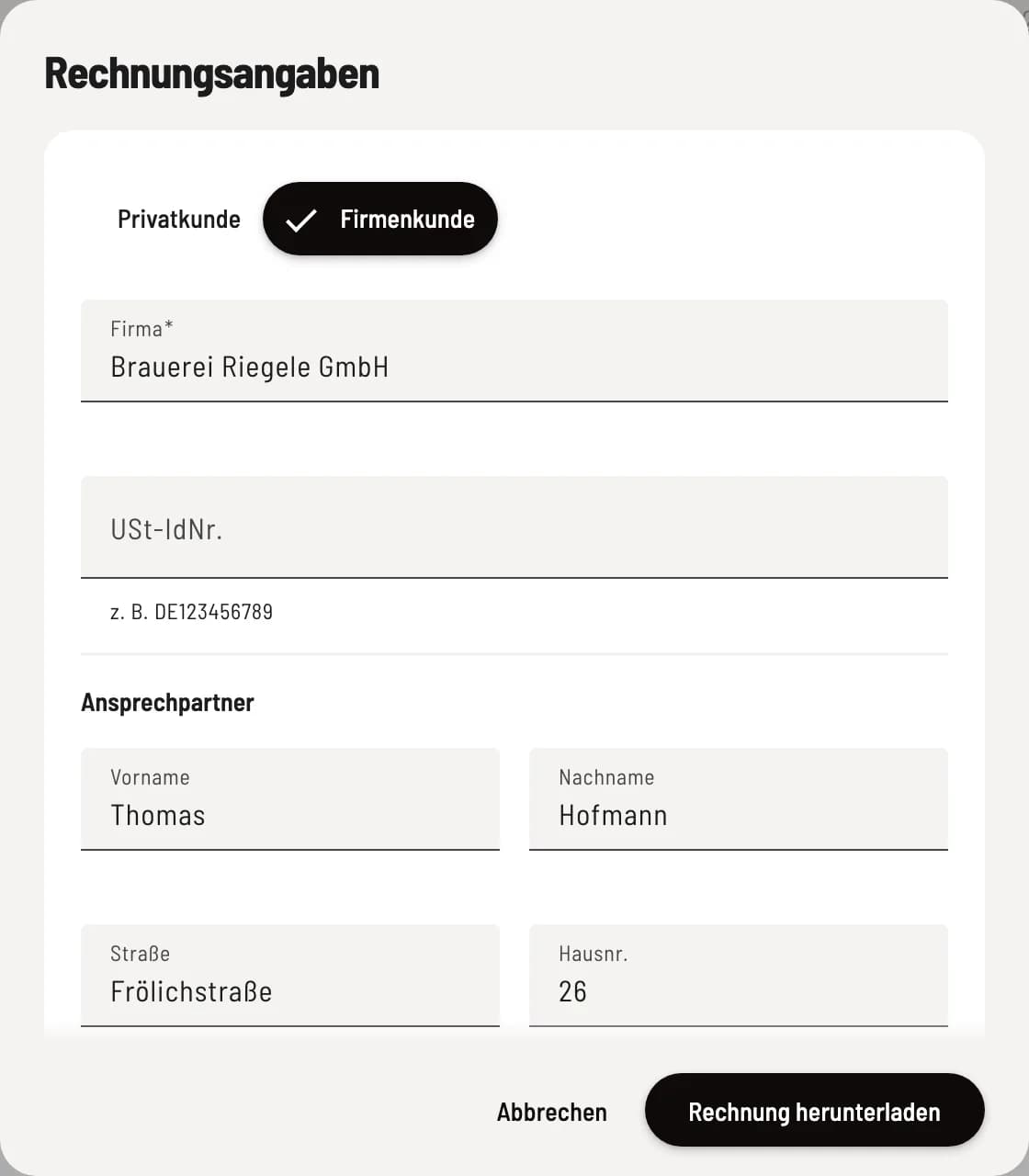
Step 2 of 3
Enter recipient
In the Invoice Details dialog, select Private Customer or Business Customer. For business customers, Company is mandatory; you can add the VAT ID No.. Below this, enter your name and address. If payment was made by invoice, you also specify the Payment Deadline (days).
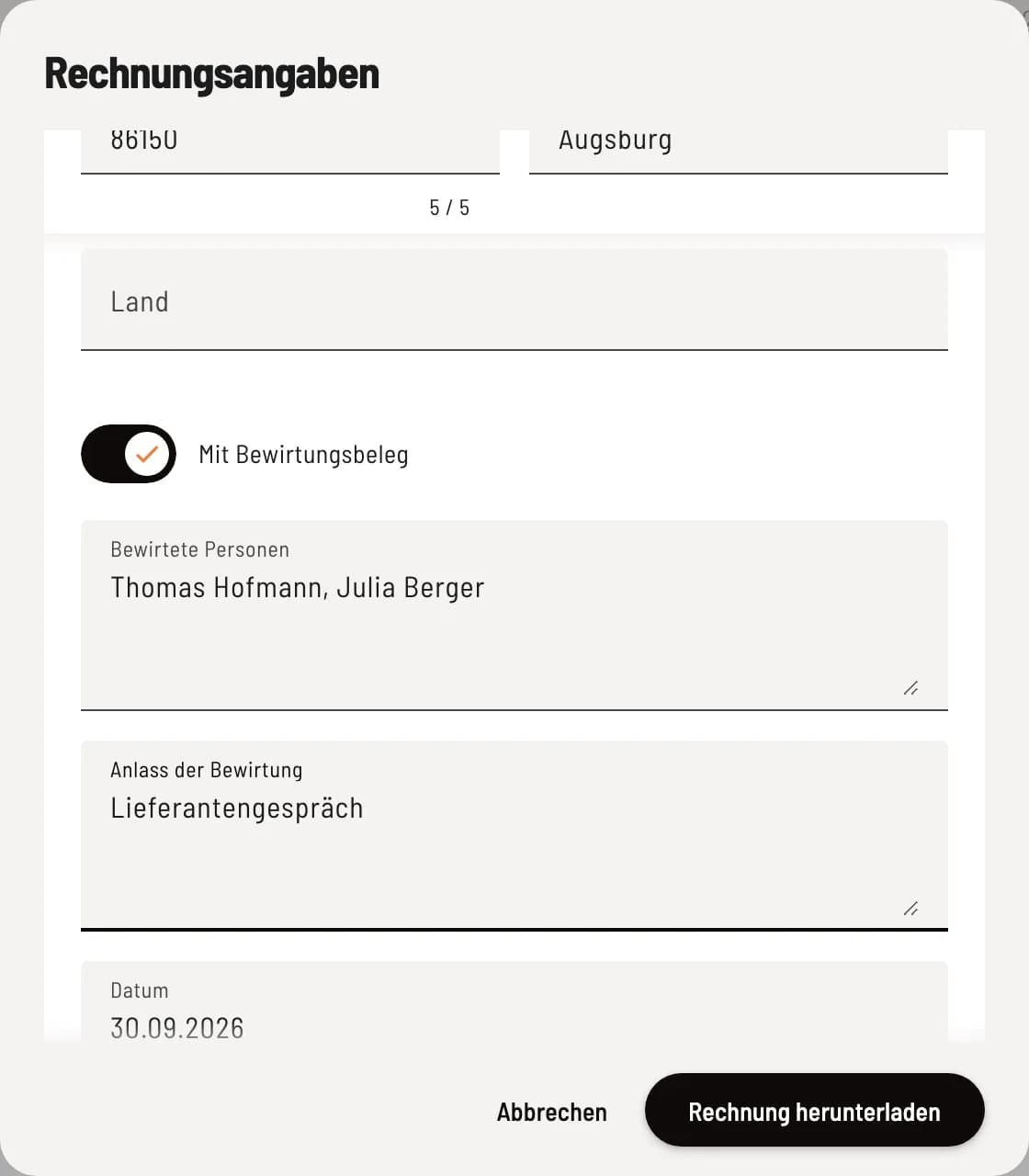
Step 3 of 3
Add to business meal receipt
Activate With business meal receipt and enter Guests Entered and Occasion for Entertainment. Check the Date: Today's date is pre-filled, not the date of the visit. Click on Download Receipt.
You can download multiple invoices via ⋯ → Download invoices or in the tab with … download collected as a ZIP file, then without recipient details.
Contrary to recognition
If card recognition is enabled in the statistics, the following option will be displayed for card payments via Stripe or Zettle: ⋯ → Opt out of recognition. If a guest does not wish to be recognized, you block their card from being included in the analysis. This cannot be reversed. You need the View statistics permission to do so. More information can be found under Statistics settings and Privacy.