
Set up guest orders
The assistant guides you through ordering processes, menu, payment, and access until guests can place orders.
The first time you open online orders, a wizard will start. It will guide you through seven steps to determine how you want your guests to place their orders. All of this can be changed later in the settings.
Prerequisite: Guest orders are included in the Max plan. Setting up and modifying them requires the employee right to Manage Guest Orders; the data processing agreement must be concluded beforehand by the owner ( Conclude a Data Processing Agreement ). If the agreement is missing, it will appear as the first step.
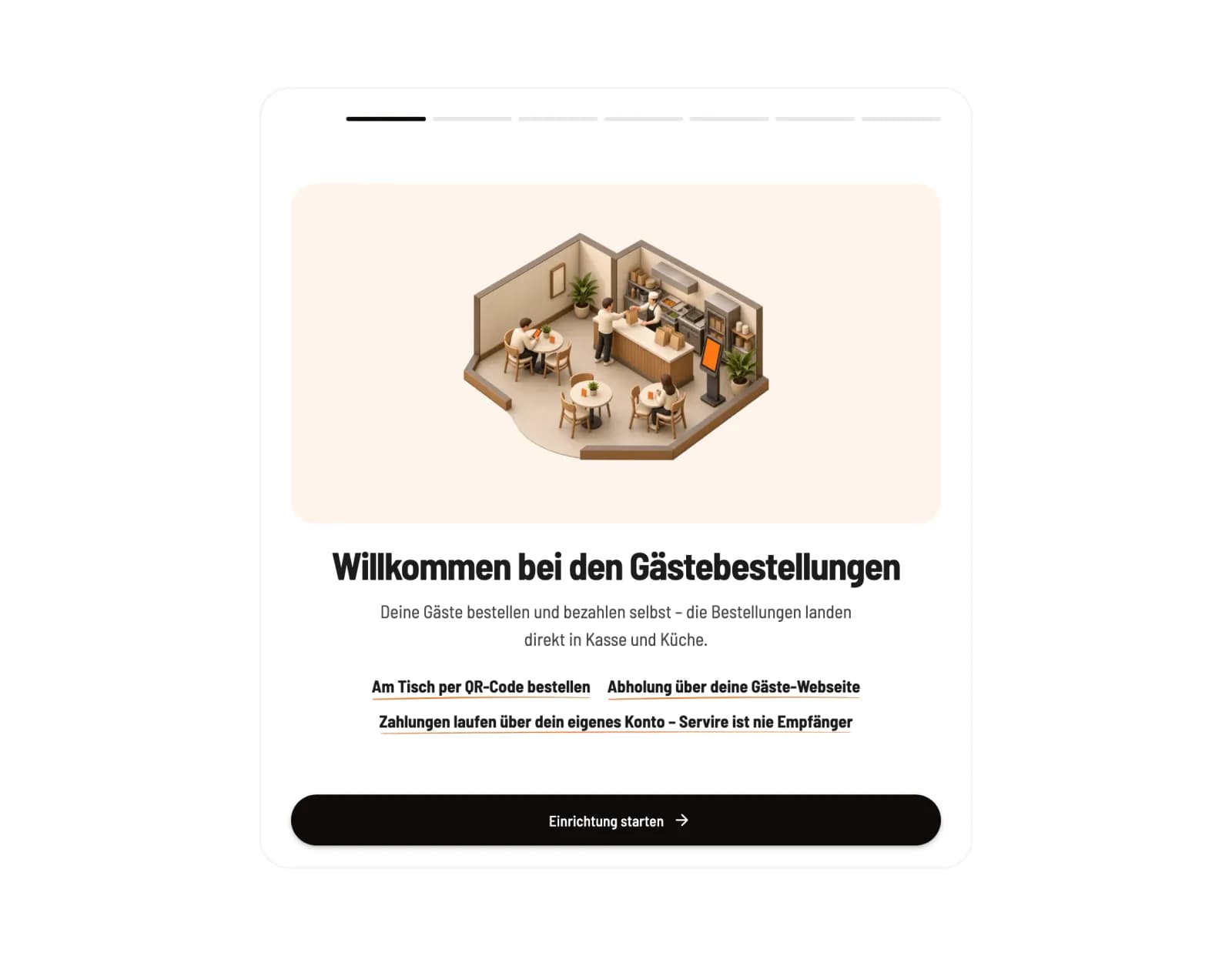
Step 1 of 7
Start setup
In the Web desk , click on Online Orders and then on Start Setup.
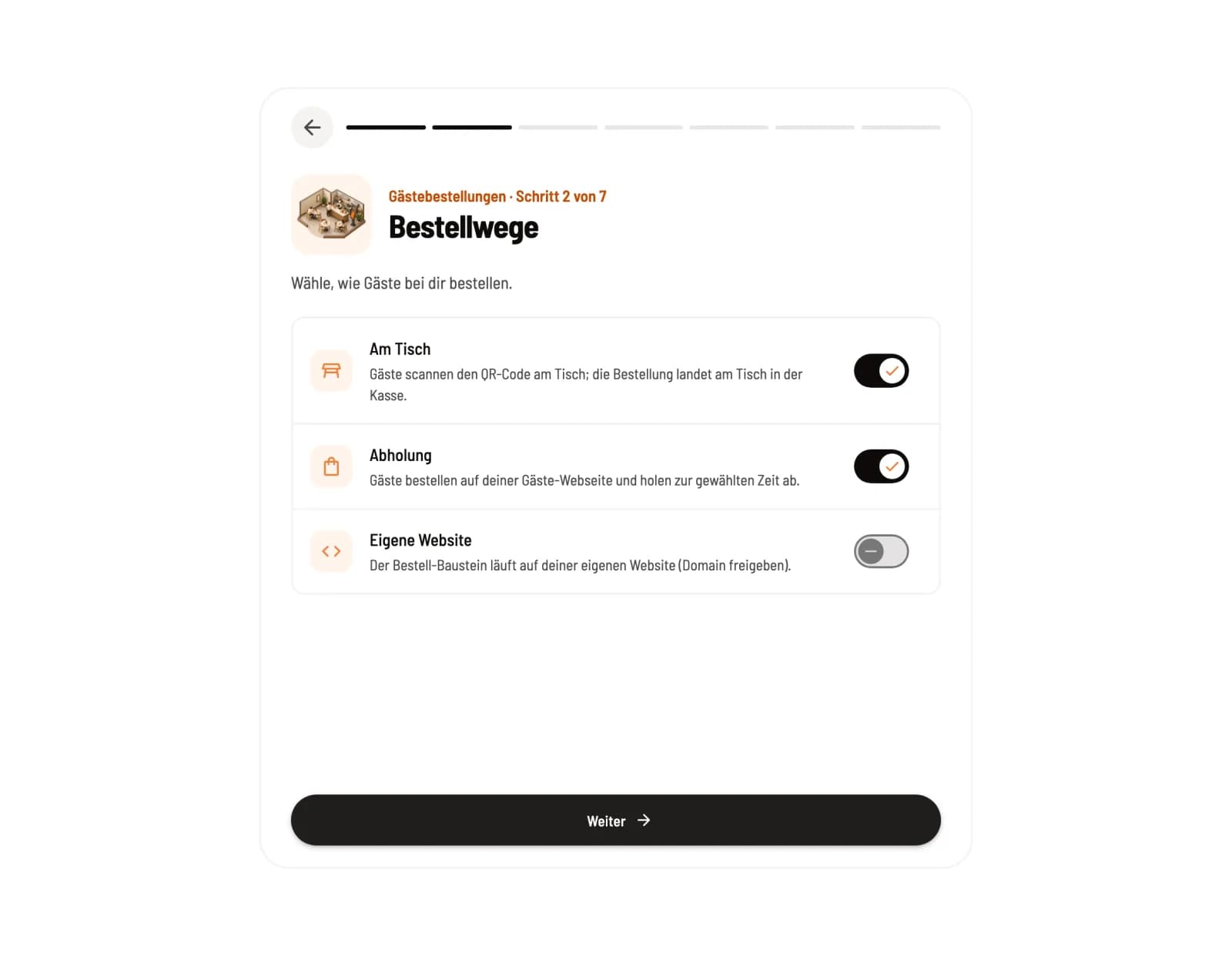
Step 2 of 7
Choose ordering methods
Activate Table Service, Pickup Service, and, if needed, Own Website. At least Table Service or Pickup Service must be enabled.
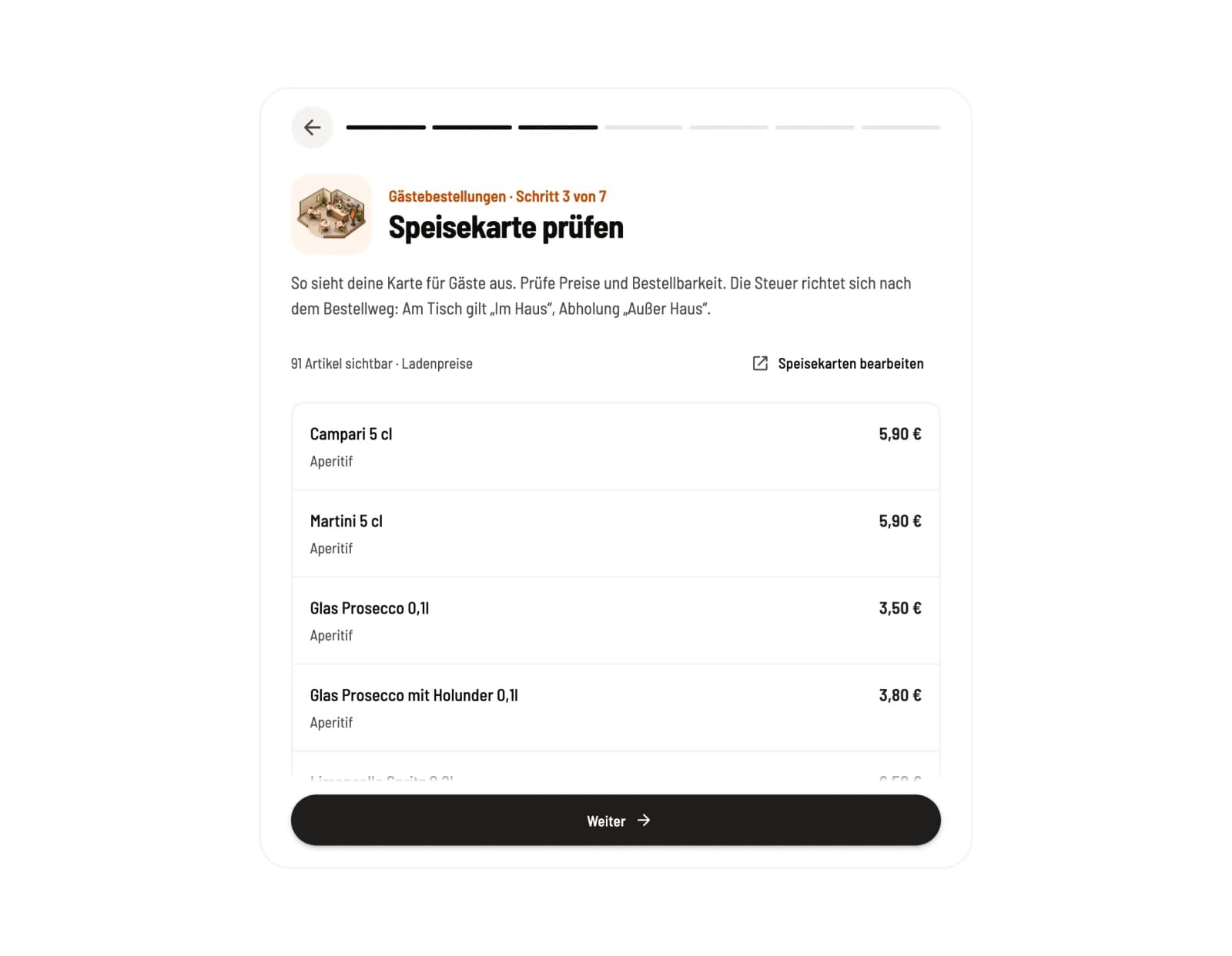
Step 3 of 7
Check menu
The assistant displays the menu as guests see it, with indicators such as No price or Mandatory selection hidden. You can correct item via Edit menu. The tax rate "In-house" applies to table orders, and "Takeout" applies to takeaway orders.
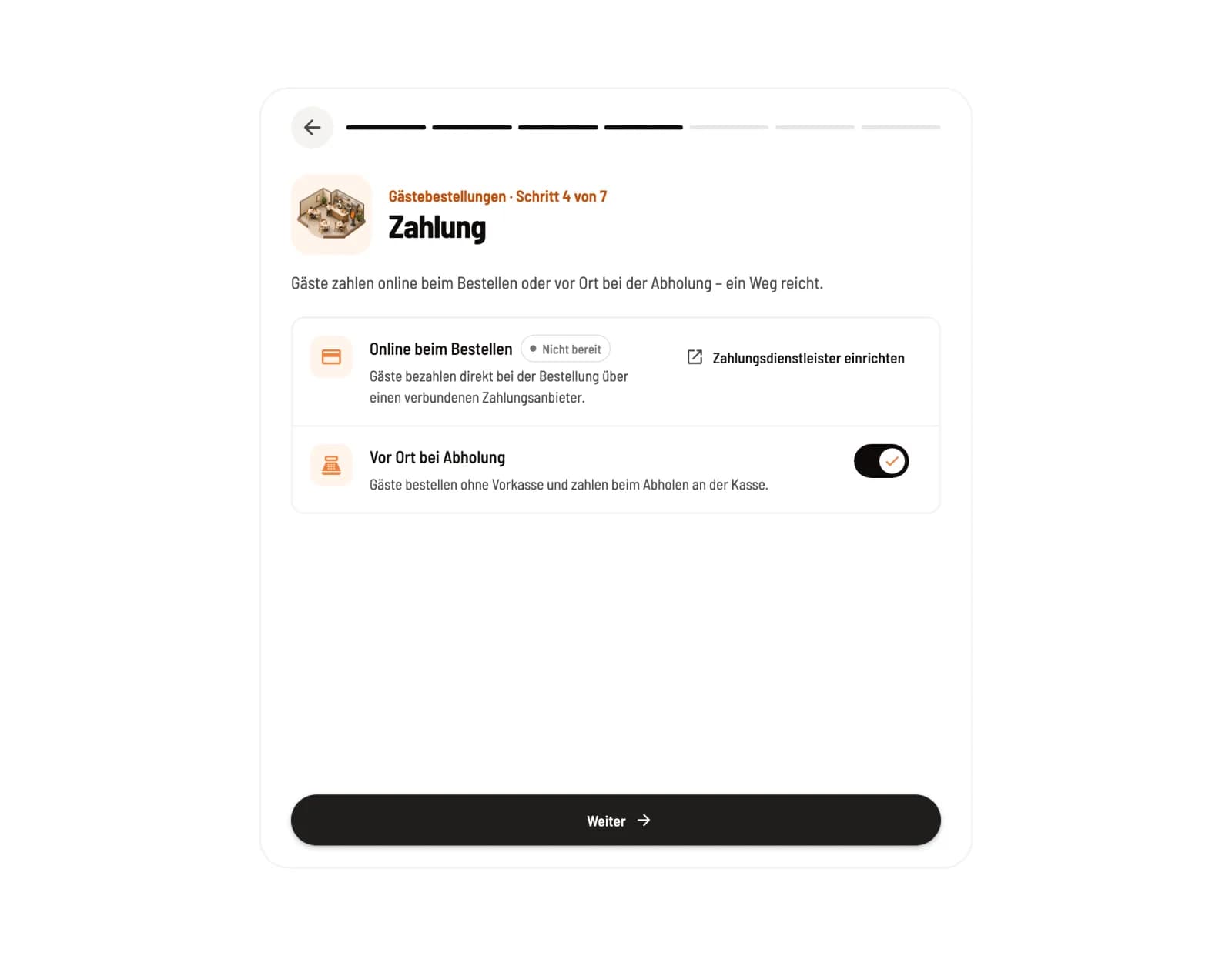
Step 4 of 7
Set payment
Ordering online requires a connected payment provider; Set up payment provider will guide you there. In-store pickup works without a provider, but pickup must be enabled. One method is sufficient.
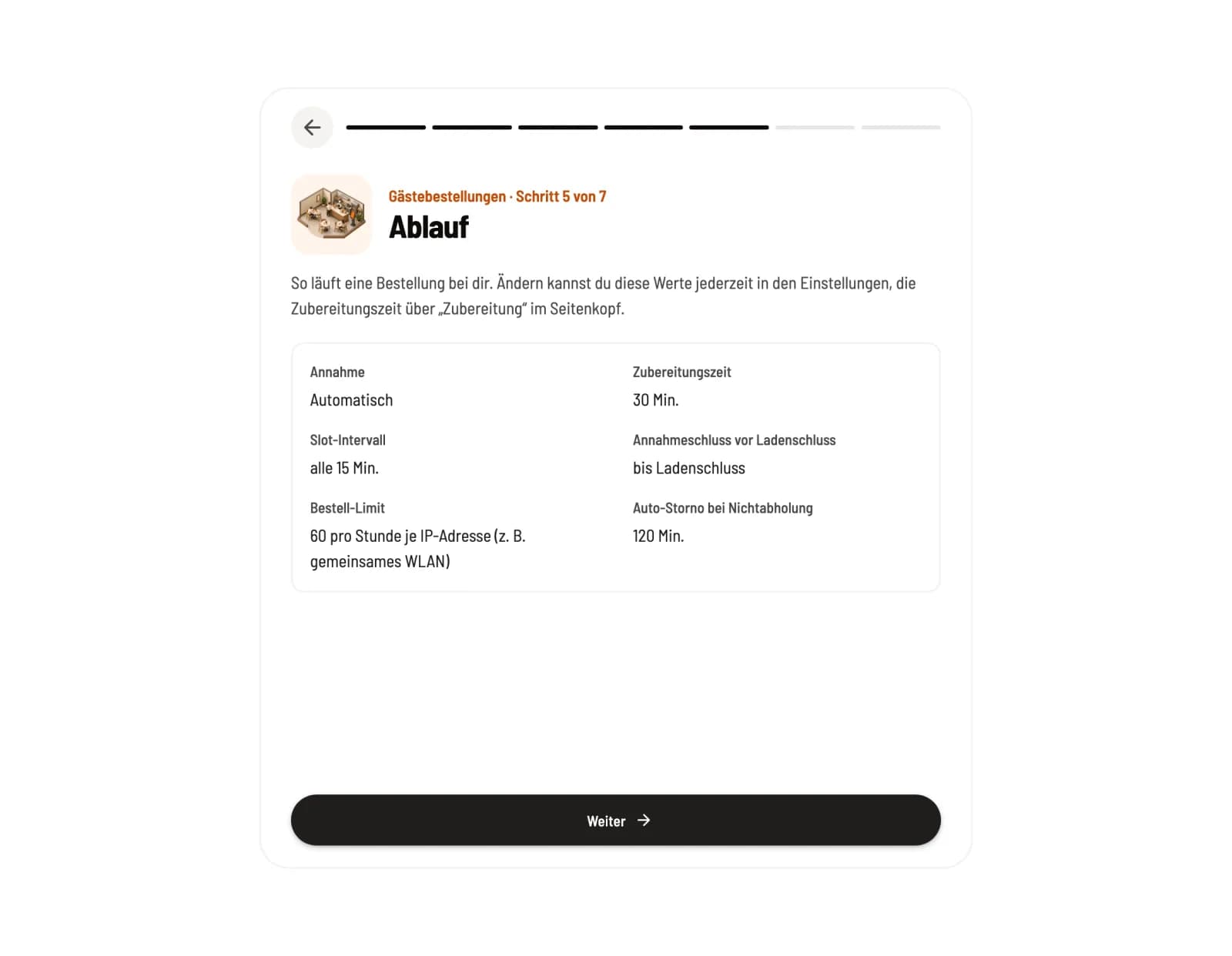
Step 5 of 7
View process
This step shows the acceptance, preparation time, slot interval, acceptance deadline, order limit and auto-cancellation settings as they are preset.
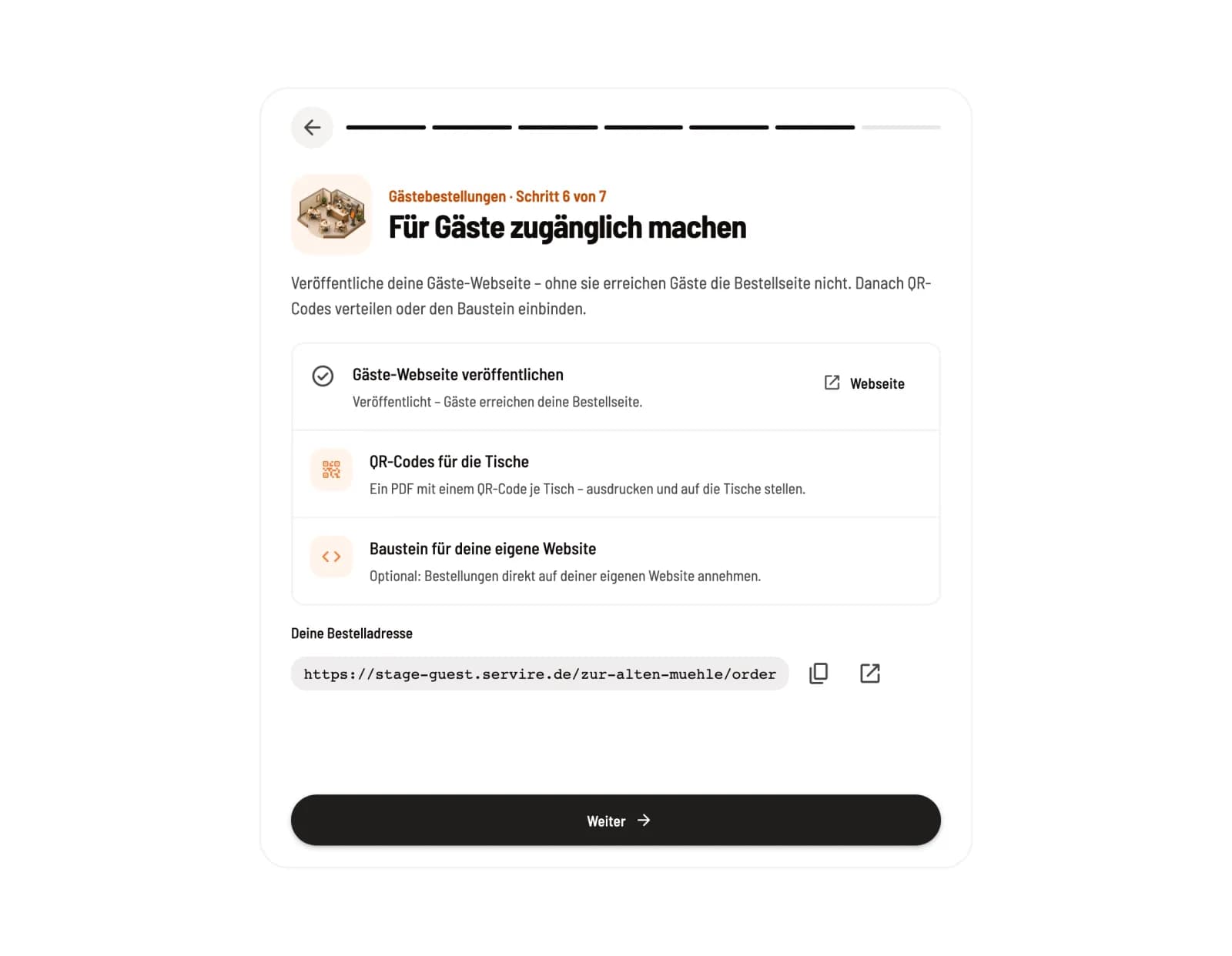
Step 6 of 7
Make accessible for guests
Publish your guest website here; without it, guests cannot reach the order page. Below you will find the QR codes for the tables, the building block for your own website, and your order address.
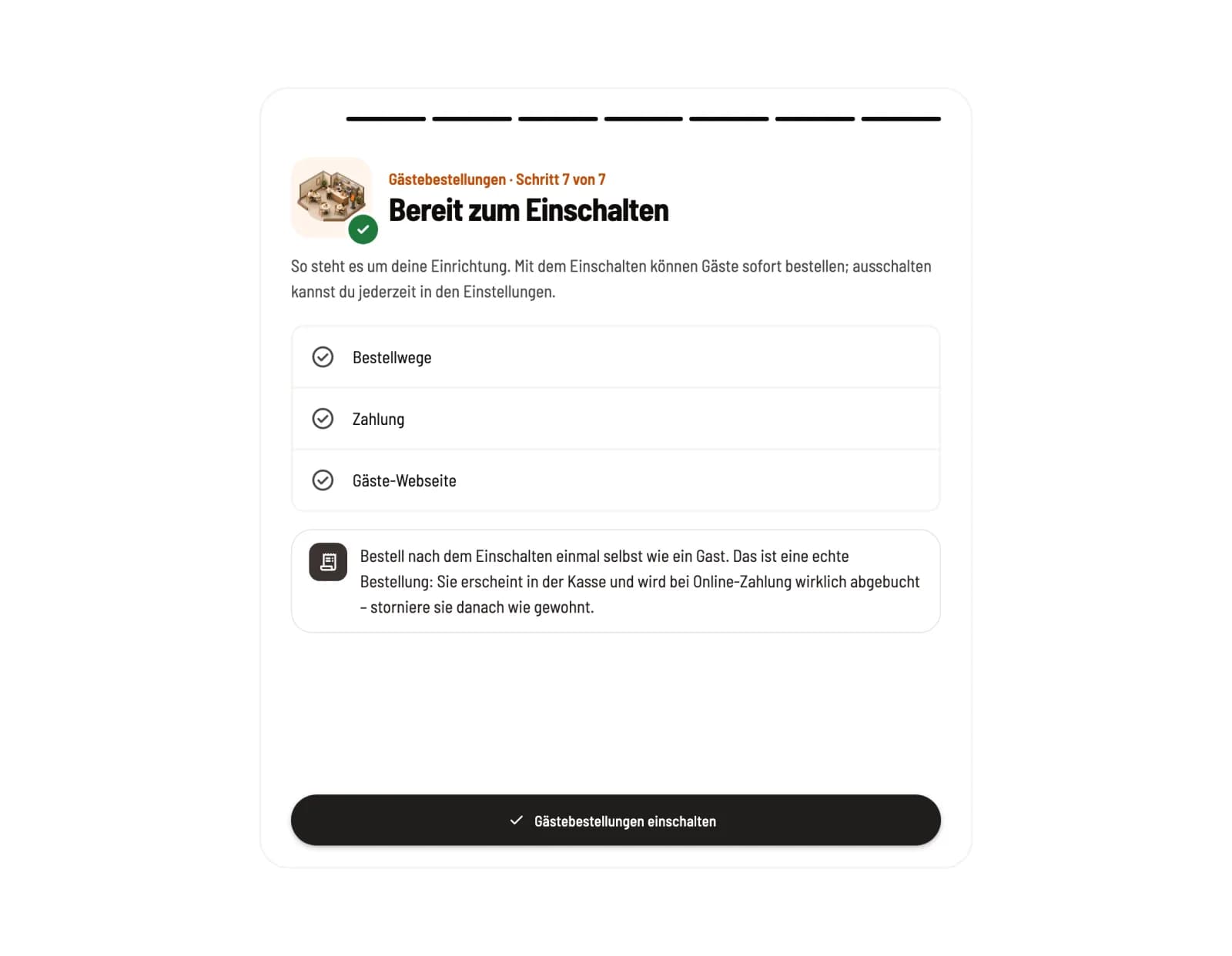
Step 7 of 7
Turn on
Ready to activate checks ordering methods, payment, and the guest website. Activate guest orders unlocks everything.
Try it yourself!
After activating the feature, the page displays the message Activated – test it now. Clicking Open Guest View allows you to order like a guest. This is a real order: it appears in the checkout and is actually charged if you pay online. Cancel it afterwards as usual ( Manage and refund guest orders ).
All settings in detail: Setting up guest orders and guest orders: Payment and QR codes.