
Check and correct inventory
This way you can see what's in short supply, correct for breaks or shrinkage, and track every booking.
Under Warehouse → Inventory you can see all stocked items and their current stock levels. Three key figures are displayed at the top: Stocked Items, Below Minimum Stock Level, and the Inventory Progress of an ongoing count.
Prerequisite: The warehouse belongs to the Max tariff; newly registered accounts test it for 14 days. The owner and employees with the Manage Warehouse right (Web desk under Employees, section ** Web desk & Master Data**) are authorized to create, book, and order items.
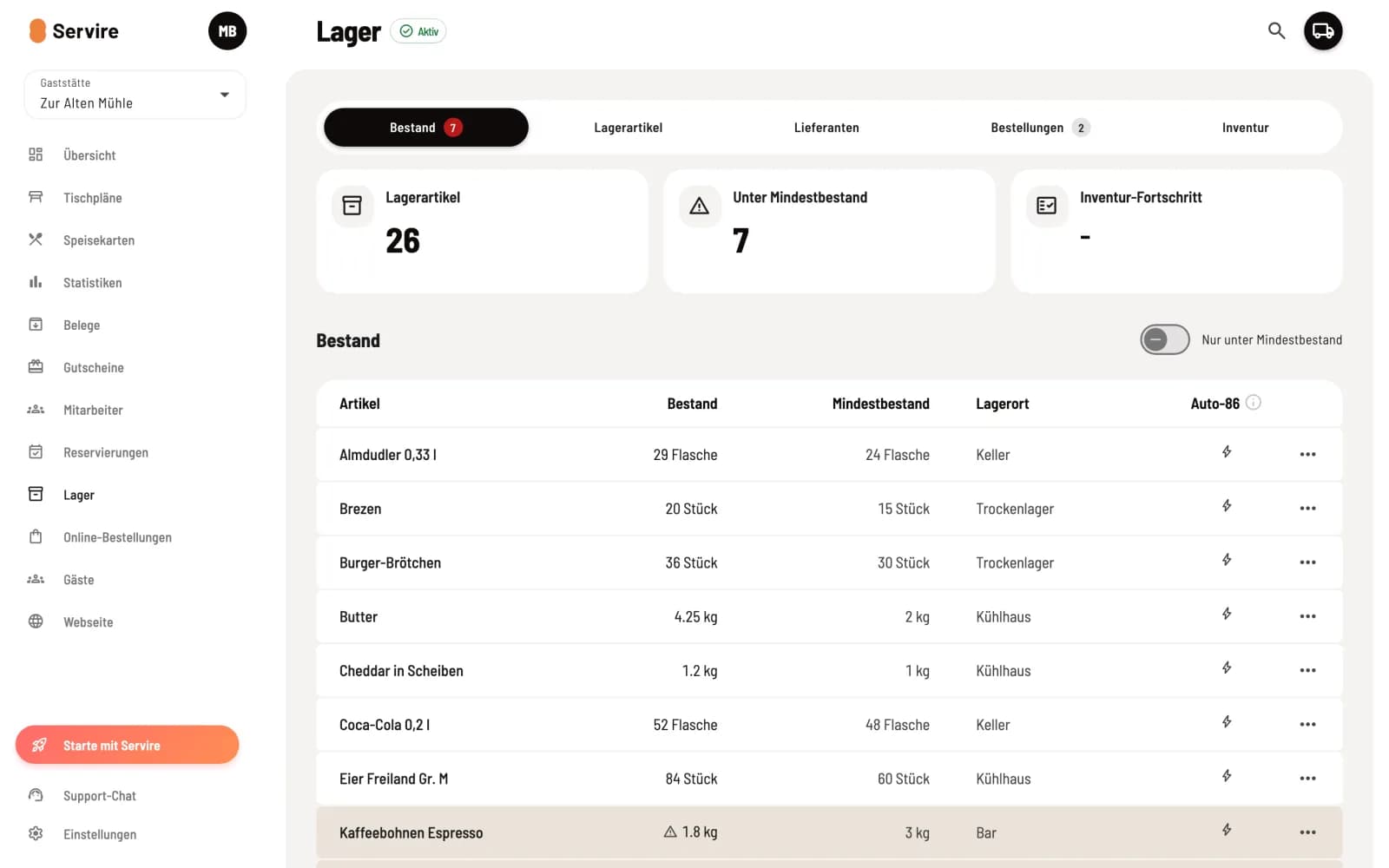
View inventory
The table shows ** item**, Stock, Minimum Stock, Storage Location, and Auto-86 (automatically sold out). item in short supply are highlighted in yellow, and stock below zero is shown in red. Use Only below minimum stock to hide the rest, and search by name or storage location using the magnifying glass at the top. The number on the Stock tab indicates the number of item in short supply.
Correct inventory
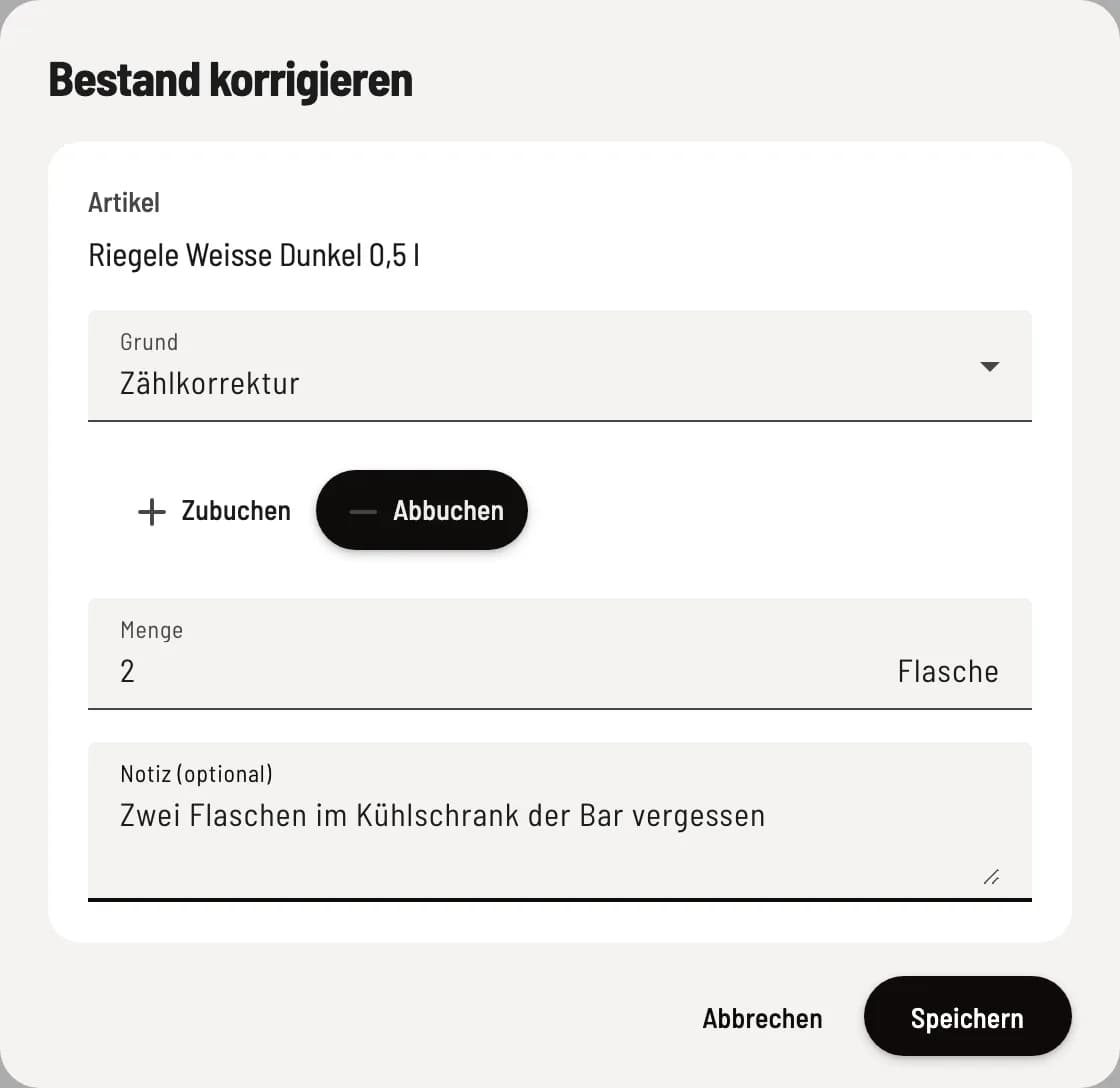
Book correction
In the row, click on … → Correct Inventory. Select the reason: Breakage and Shrinkage always deduct, for Count Correction and Other, select Add or Deduct. Enter the quantity and, if necessary, a note, and click Save.
Using the same menu, you can book a delivery for exactly this item with Book goods receipt (see Book goods receipt ).
Movement history
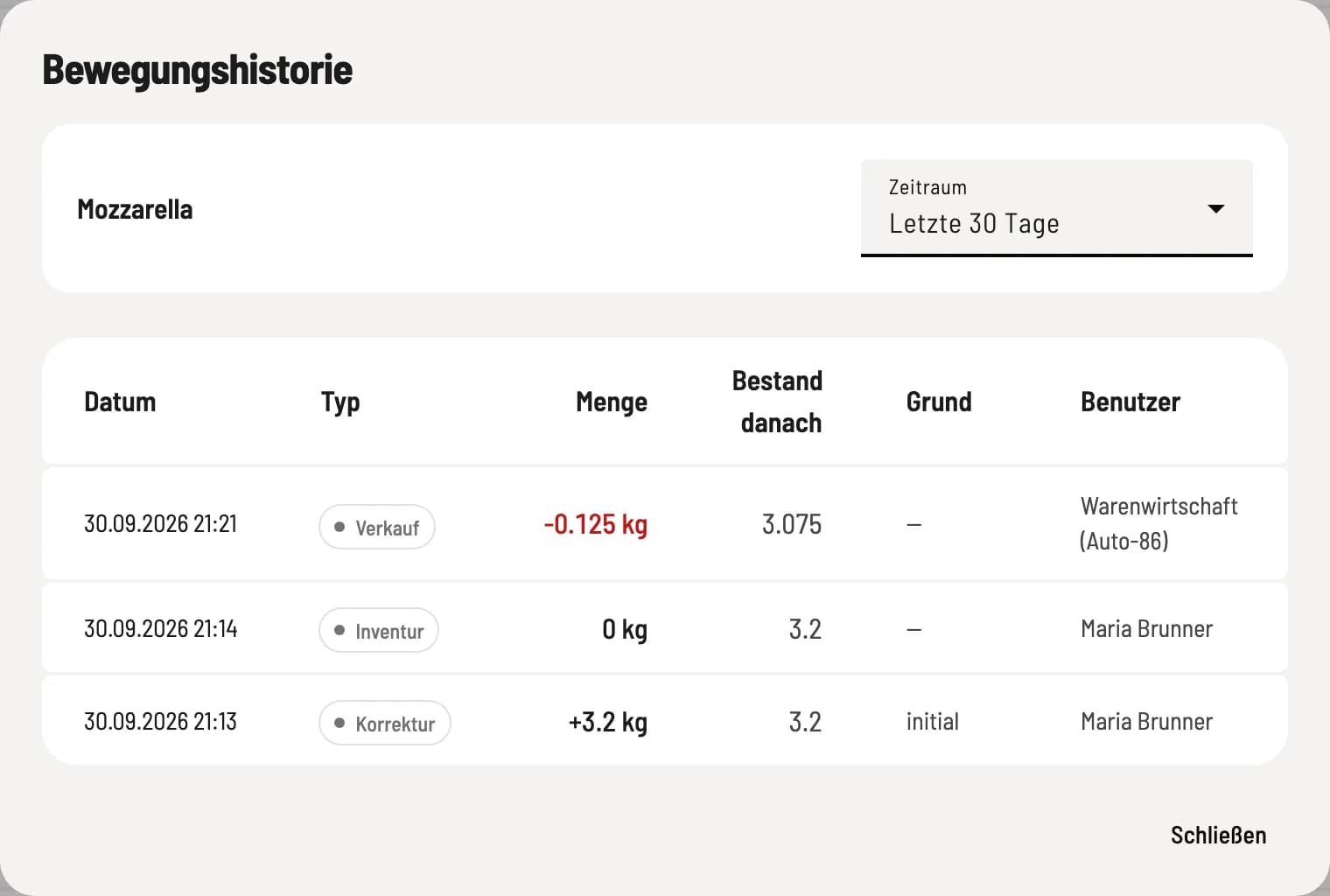
Track bookings
Click on … → Movement History. Each line shows Date, Type (Sale, Cancellation, Goods Receipt, Correction, Loss, Inventory), Quantity, Stock after, User, and Reason. Under Period, you can select 7, 30, or 90 days, 12 months, or all; Load More displays older entries.
Message: "Inventory postings failed"
If a booking could not be processed, a yellow message appears above the table. Click on Show: The list displays the item, type, quantity, and date. Such bookings cannot be changed retroactively; balance the inventory using Correct via a correction.