
Categories and course selection when ordering
Set whether the categories appear as tiles or as a bar, and where you choose the aisle.
Two settings determine how the menu appears when ordering. They only apply to the device on which you change them. You can find them under Overview → Settings → General in the View section.
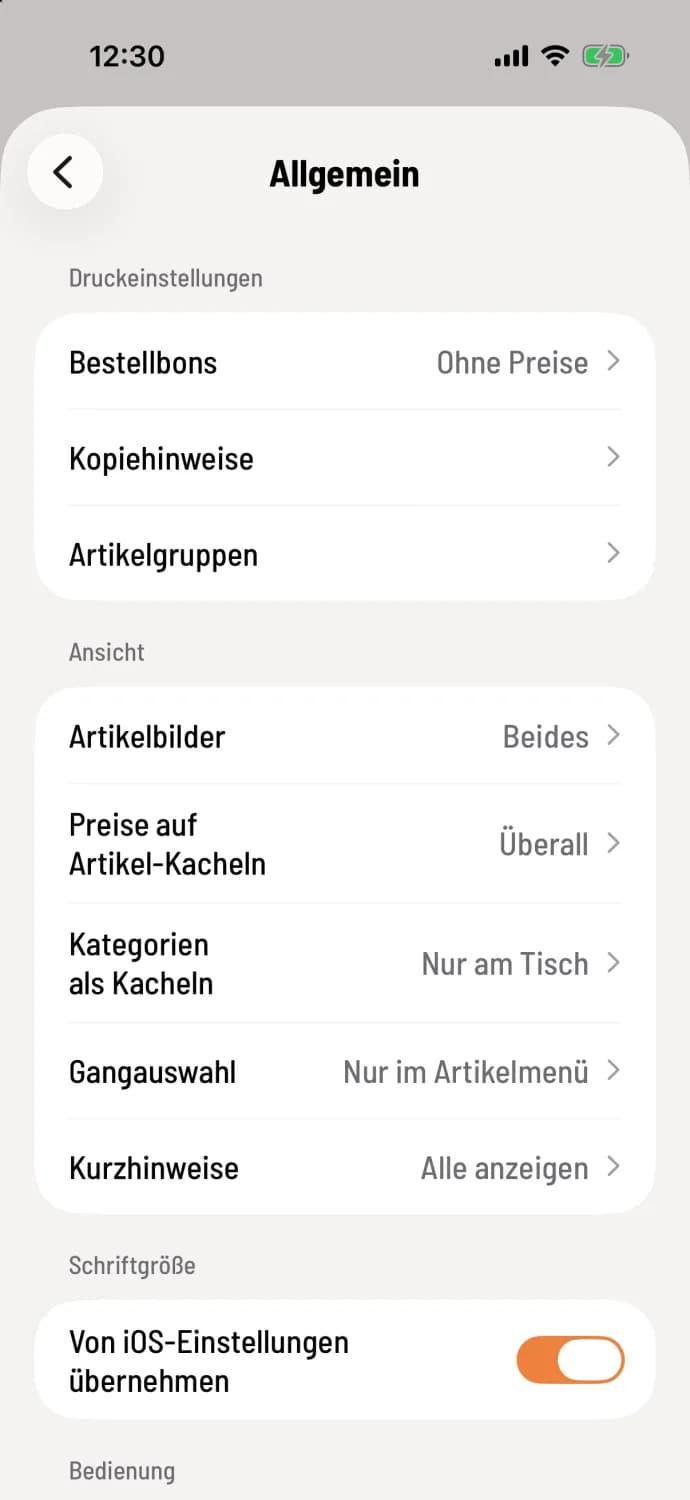
Open settings
Tap the house icon in the top left corner, then Settings and General. In the View section, you'll find Categories as Tiles and Aisle Selection.
Categories as tiles
With tiles, you see all categories of a map at a glance. Tapping opens their item. Above, it shows your current location, for example, Drinks › Beers; tapping Drinks takes you back to the tiles. Without tiles, the categories appear as a bar above the articles, and you swipe sideways to navigate.
Everywhere – the table and counter feature tiles.
Only at the table – preset: tiles at the table, the bar at the counter .
Only at the counter – tiles at the counter , the strip at the table.
Nowhere – the bar is everywhere.
The to-go order follows the counter price. If a menu only has one category, you'll see its item immediately. There are no tiles in the search or favorites sections.
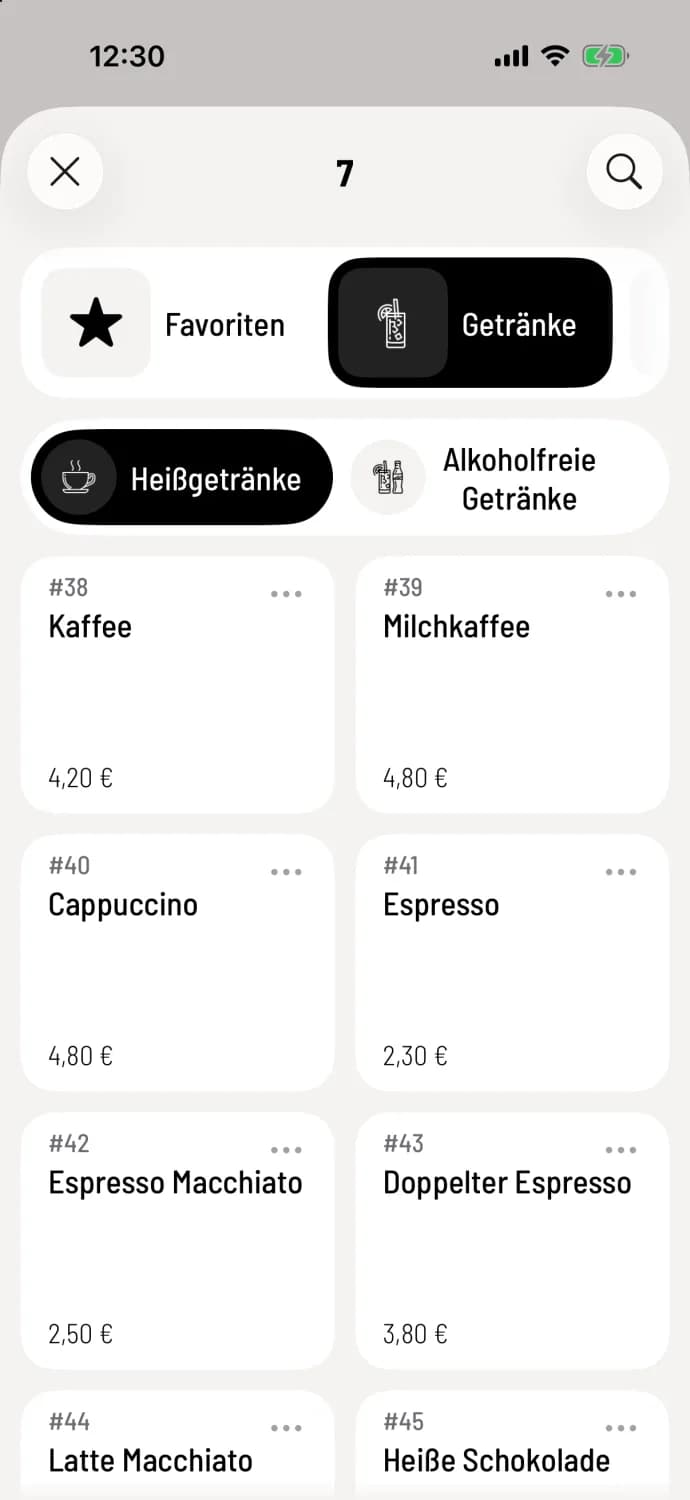
Gear selection
Only in the item menu – preset. You select the aisle on the tile: press and hold and tap Order in aisle. The order bar will only appear with the first item.
Also in the order bar – there's an additional course button at the bottom, initially set to No Course. All subsequent item will be added to the selected course until you change it. This bar is already present when you open the menu .
How gears work: Creating gears.