
The overview in the Web desk
How to navigate the Web desk and what the homepage shows about the current shift .
After logging in to desk.servire.de, you will land on the overview. This shows the current or last shift at the selected restaurant. The sidebar with all sections is on the left.
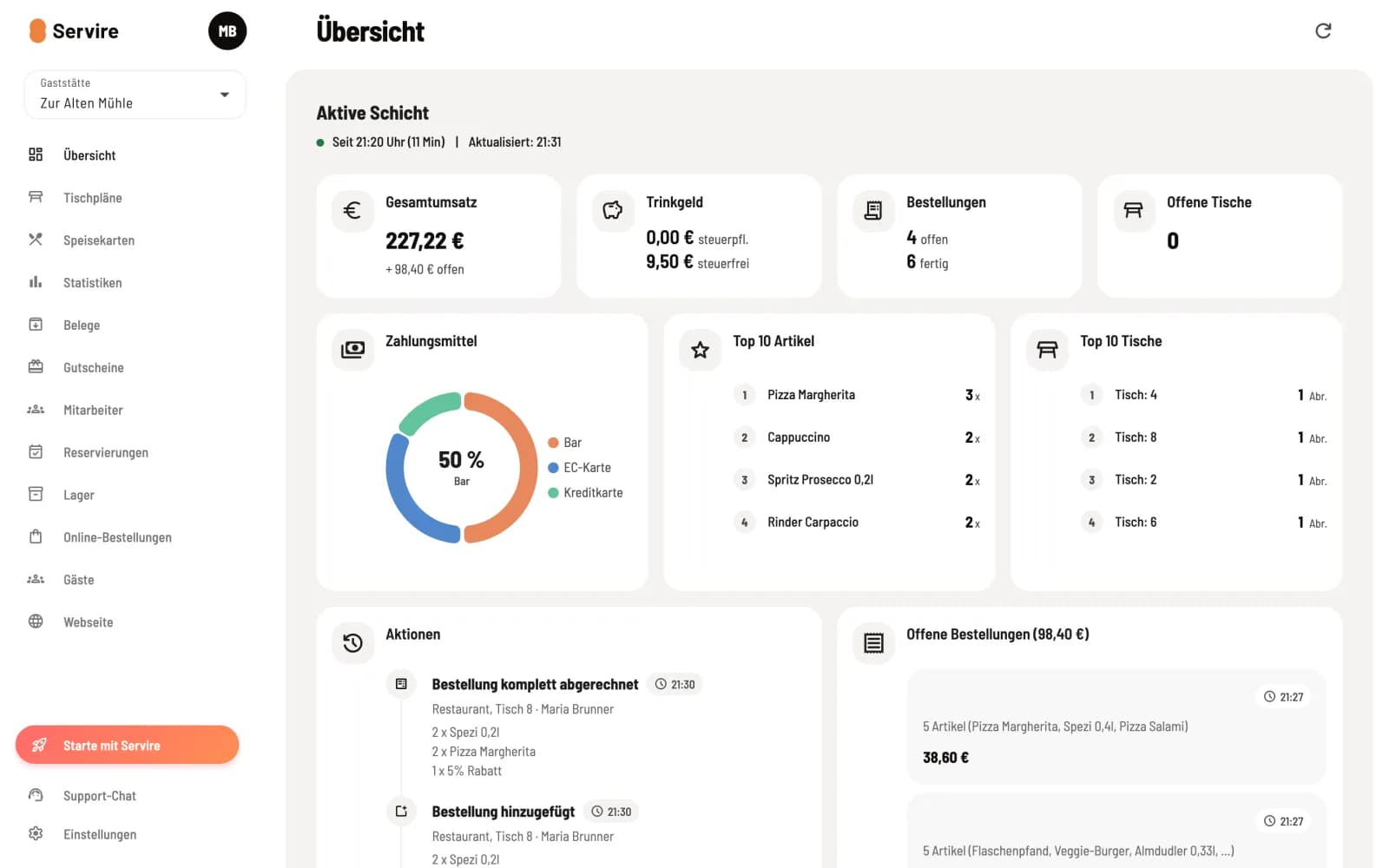
The shift 's key figures
Total Sales – Sales of the shift; including any outstanding orders.
** tip** – separated into taxable and tax-free.
Orders – how many are open and how many are finished.
Open Tables – Tables where an order is still being processed.
Methods of Payment – Proportion of cash, card and other payment methods as a ring.
Top 10 item and Top 10 Tables – the best-selling item and the tables with the most transactions.
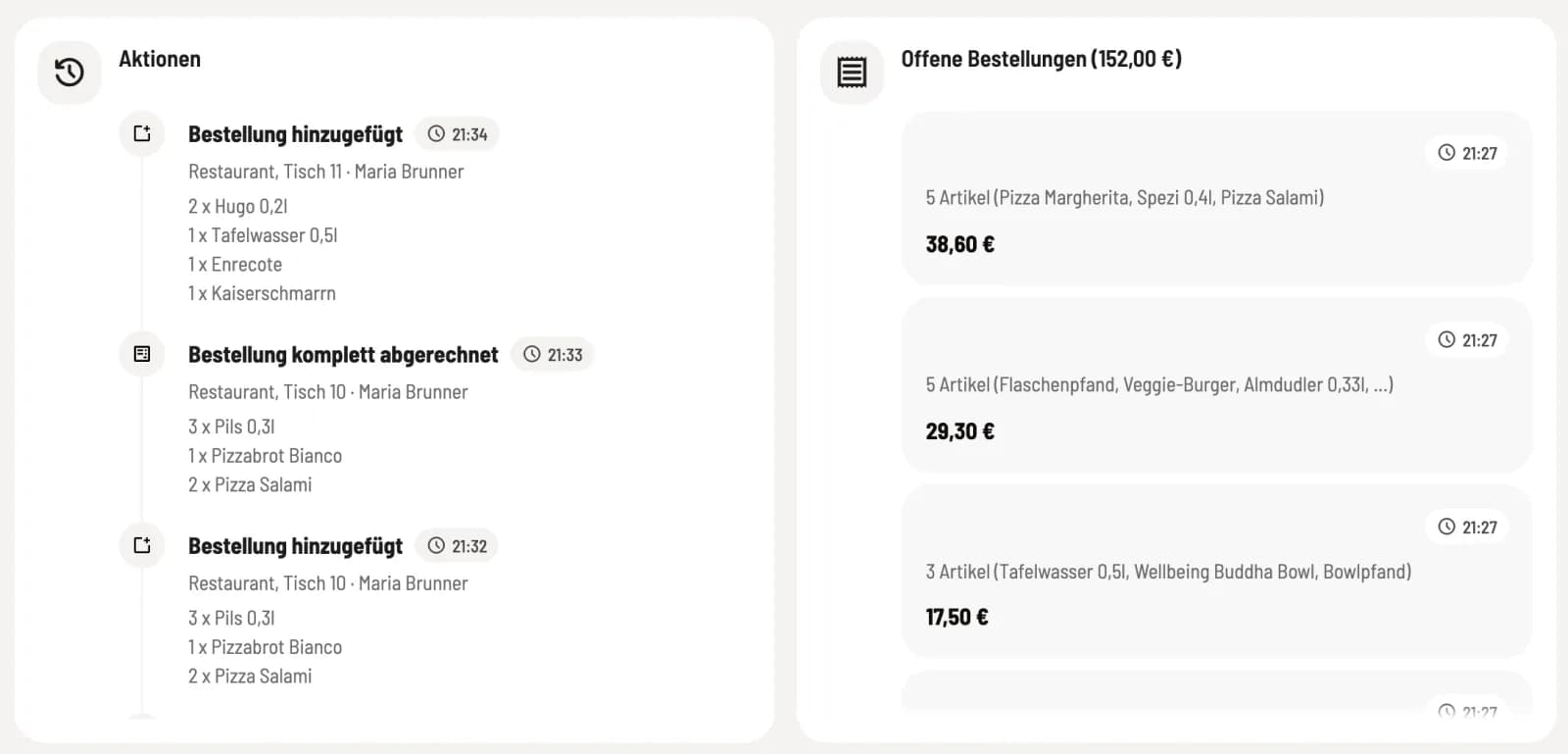
Below, Actions lists every transaction of the shift with time, table, and employee, such as orders, payments, and cancellations. Open Orders shows every unpaid order with items, amount, and number of people. You can refresh the figures using the Refresh arrow in the upper right corner. If there has never been a shift, Welcome to Servire will be displayed here with a link to the POS app.
Sidebar, Restaurant and Profile
Step 1 of 3
Open areas
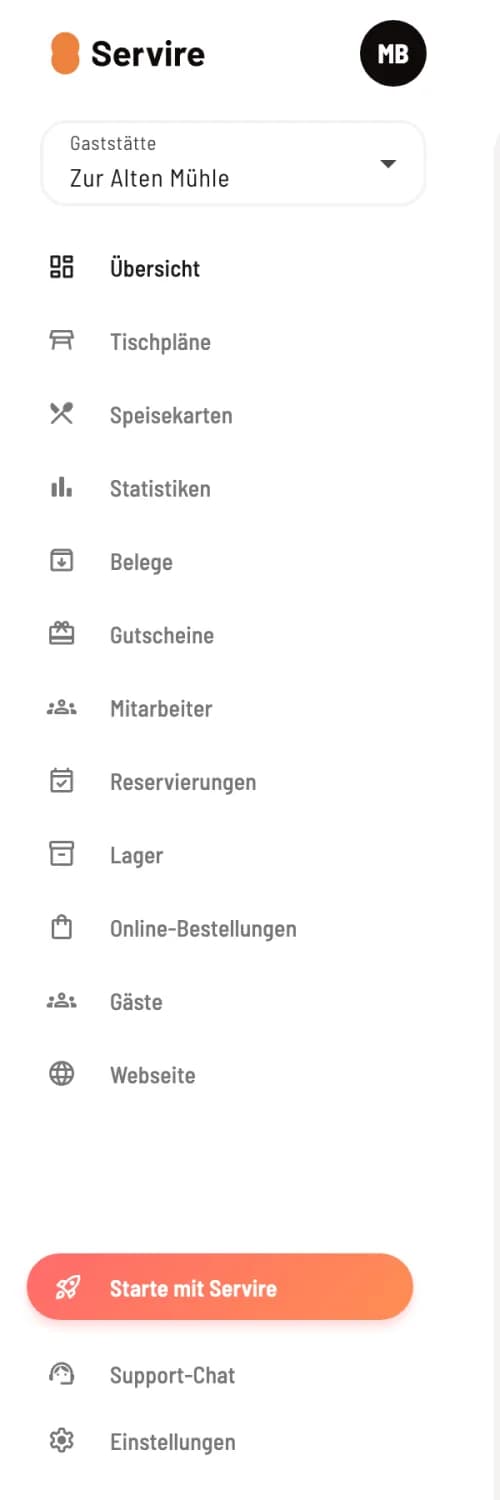
The sidebar leads to Table Plans, Menu, Statistics, Receipts, Coupons, Staff, and the Max areas. Without a Max plan, these are grayed out and display the MAX badge. At the bottom are Support Chat and Settings. On your phone, you can open the sidebar via the menu icon.
Step 2 of 3
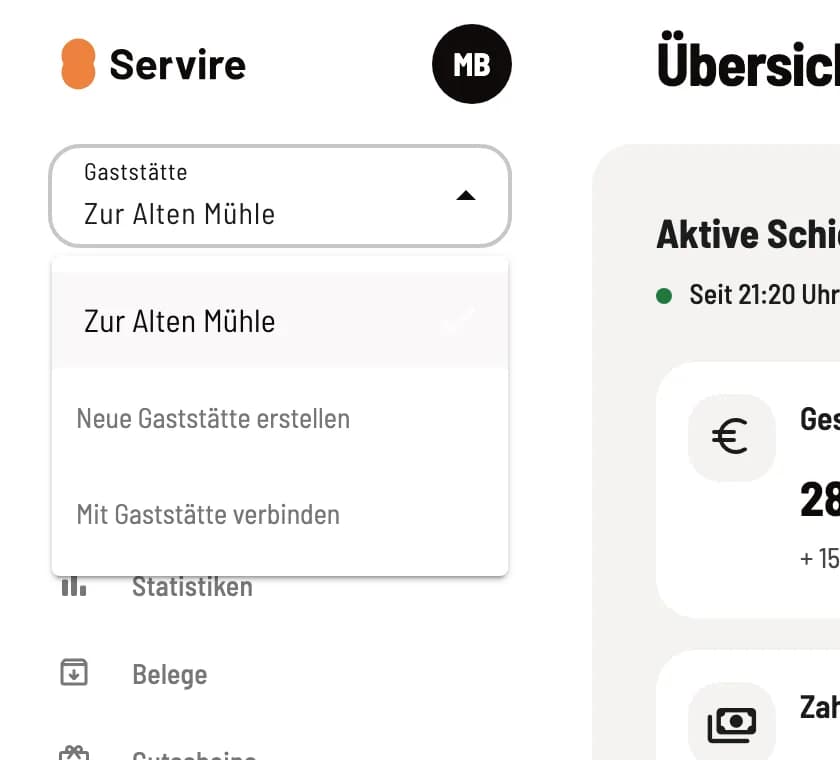
Change restaurant
At the top of the bar is the Restaurant tile. Click on it and select a different establishment. Below that, you'll find Create New Restaurant and Connect to Restaurant.
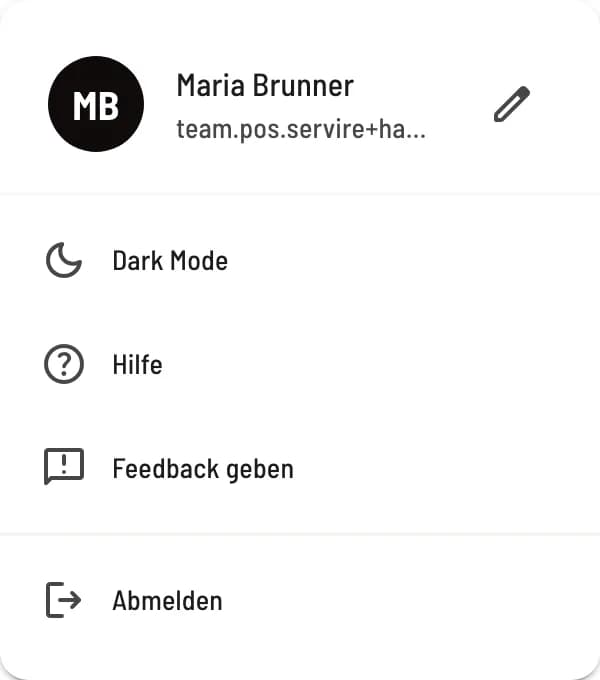
Step 3 of 3
Profile menu
Clicking on your profile picture displays your name and email address. The pencil icon leads to the settings, and there are also options for Dark Mode, Help (this manual), Give Feedback, and Log Out.
Notes on the overview
Your cash register is currently operating without a TSE – this message is displayed to the owner of a restaurant with a paid tariff as long as a TSE has not been installed. **Set up TSE ** leads to the installation process, Don't show again hides the message for this restaurant.
“…” is included in the Max plan – appears when you access a Max section without the Max option. View plan opens Settings → Subscription.
Start with Servire – the button at the bottom of the sidebar leads to the subscription, as long as the restaurant has not already taken out a subscription.
Employees without Web desk access will see the message No Permission instead of the page. Access rights are granted by the owner: Employee permissions in detail.