
Book goods receipt
This is how you book delivered goods into inventory, to an order, or freely in containers.
Upon receipt of goods, delivered goods are added to inventory. If you ordered from Servire , you record the entry in the order; otherwise, use the Inventory tab.
Prerequisite: The warehouse belongs to the Max tariff; newly registered accounts test it for 14 days. The owner and employees with the Manage Warehouse right (Web desk under Employees, section ** Web desk & Master Data**) are authorized to create, book, and order items.
Delivery for an order
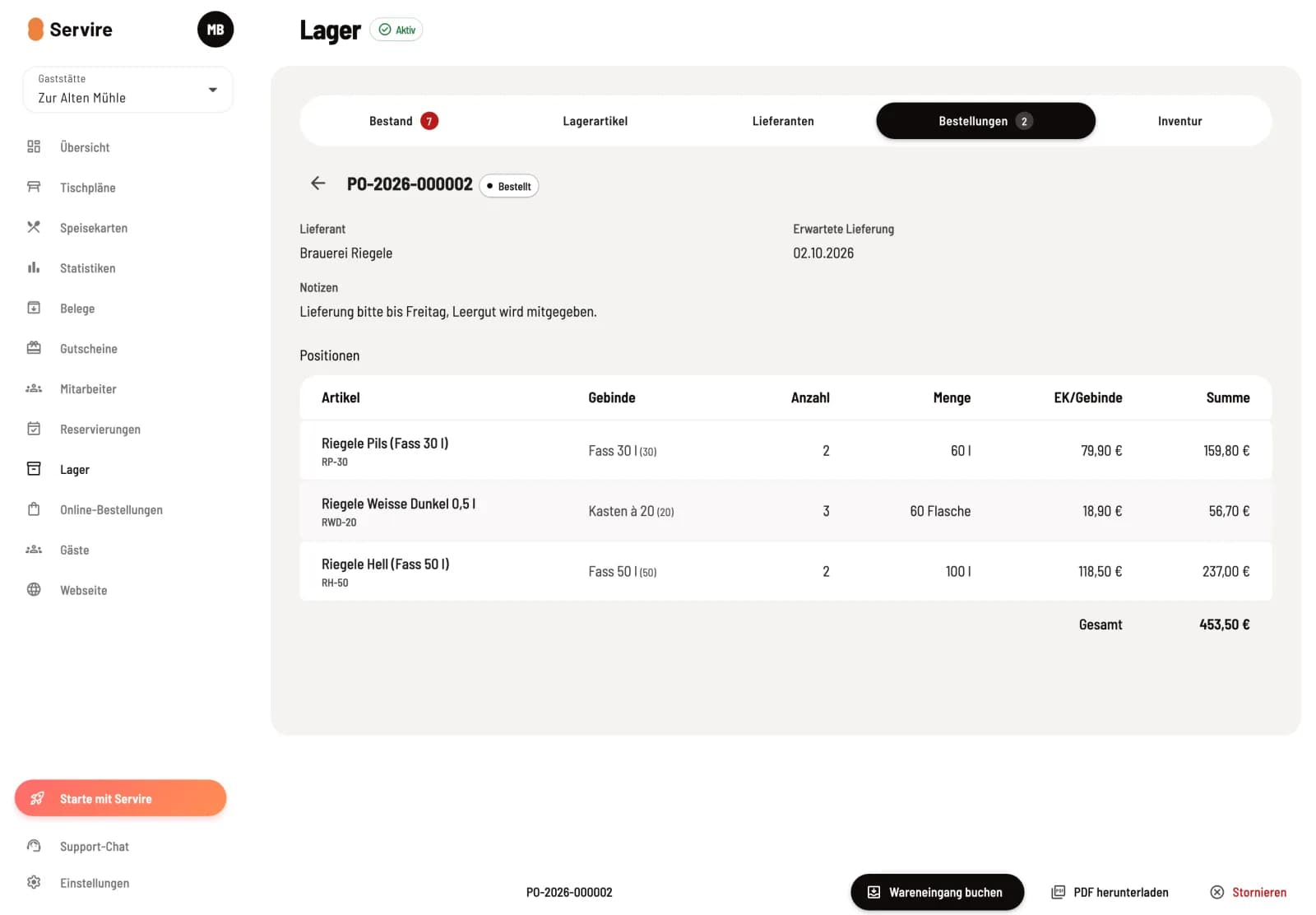
Step 1 of 2
Open order
Open the order with the status Ordered under Warehouse → Orders and click on Book goods receipt at the bottom.
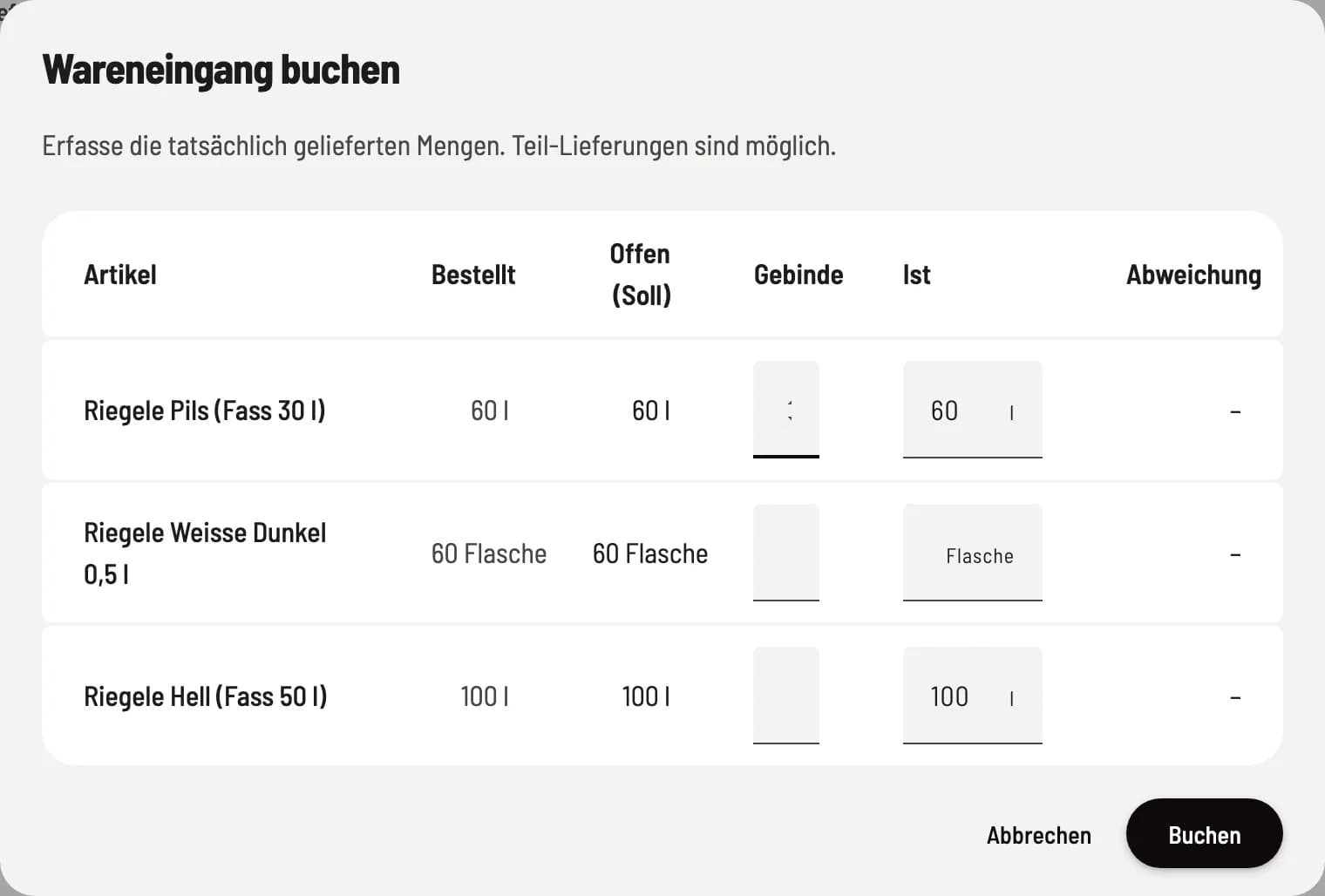
Step 2 of 2
Record delivered quantities
For each item , you'll see Ordered and Open (Debit). Enter the delivered packaging under Packaging or the quantity in the base unit under Actual; the Variation column shows any differences. Click Post.
If something is still missing, the order will show as Partially Received, and you can order the rest with the next delivery. Once everything is there, it will change to Received.
Goods received without order
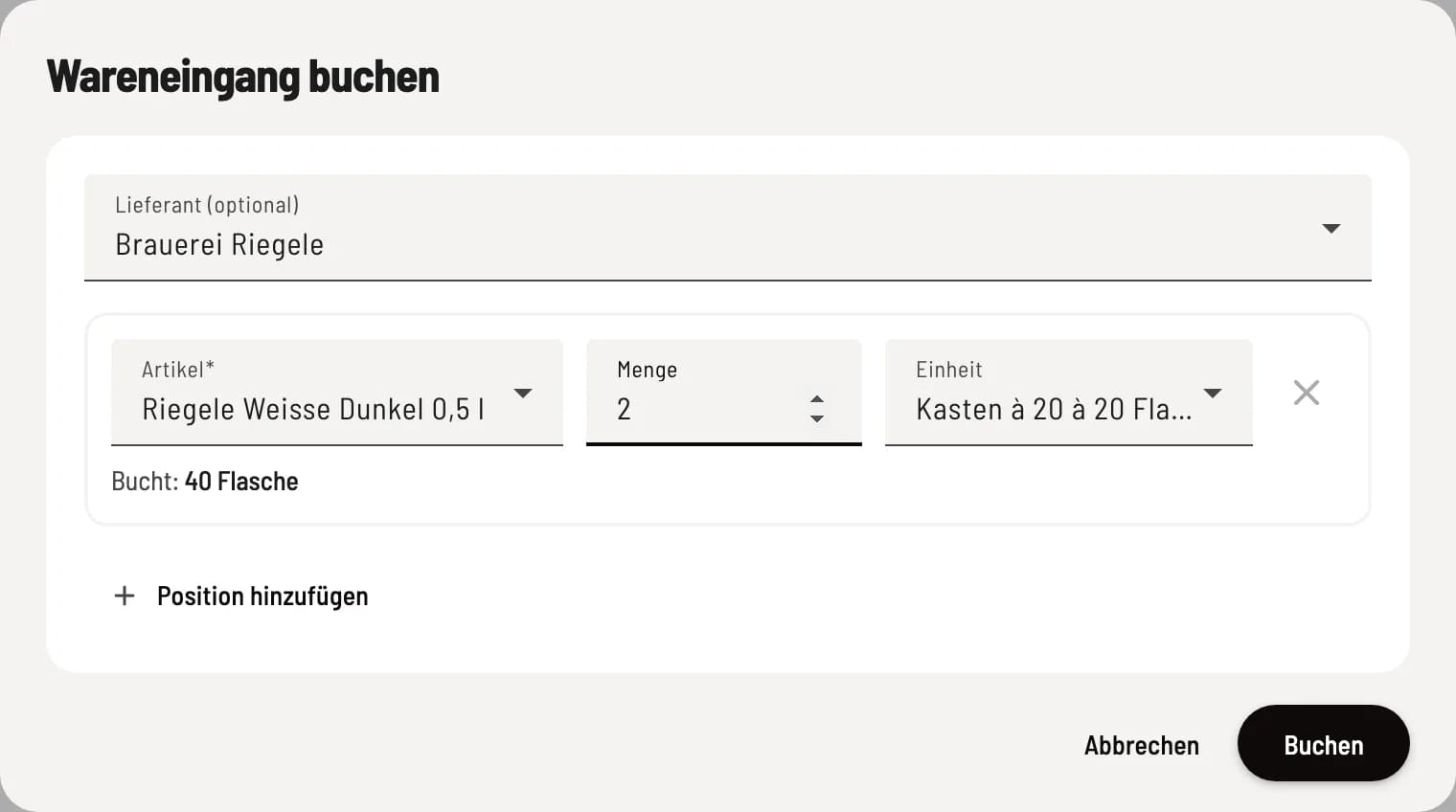
Book delivery
Under Warehouse → Inventory, click the delivery truck icon in the upper right corner. Select the Supplier (optional) if needed. For each Item, select the ** item** and Quantity; if a packaging unit is specified, select between packaging unit (e.g., box of 24 pieces) and individual quantity under Unit. The Posting: line shows what arrives in inventory. Use Add Item to add more item, then click Post.
A new supplier can be created directly in the selection Supplier (optional) via New Supplier; it is then selected immediately.
If item linked to goods are automatically sold out, the goods receipt process releases them again.