
This is how your guests order
What guests see on their mobile phone when they order for pickup or at the table.
Guests don't need an app. The order page opens in their mobile browser, via the QR code on the table, your pick-up link, or the Order section on your Servire website. The images show the demo restaurant "Zur Alten Mühle".
Order for pickup
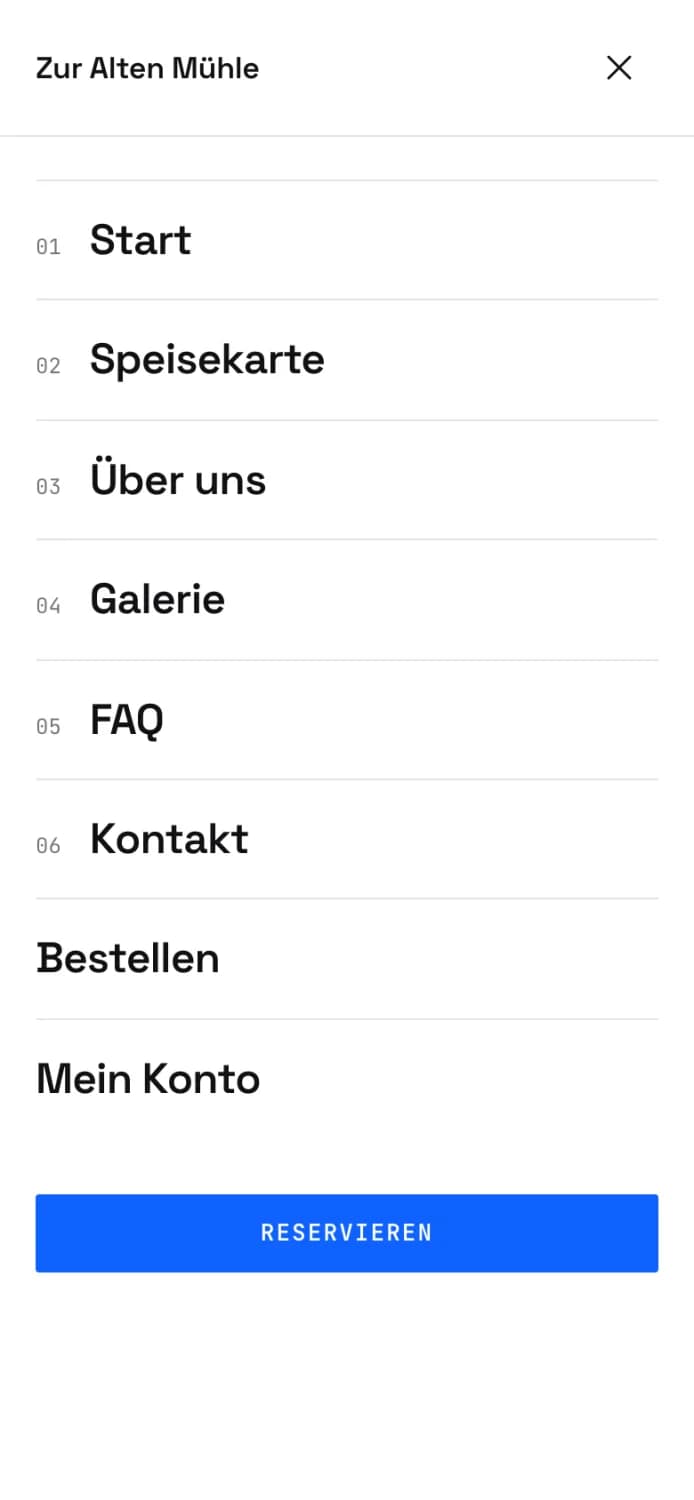
Step 1 of 5
Open order page
Your website menu includes the option Order. The link leads to Order online.
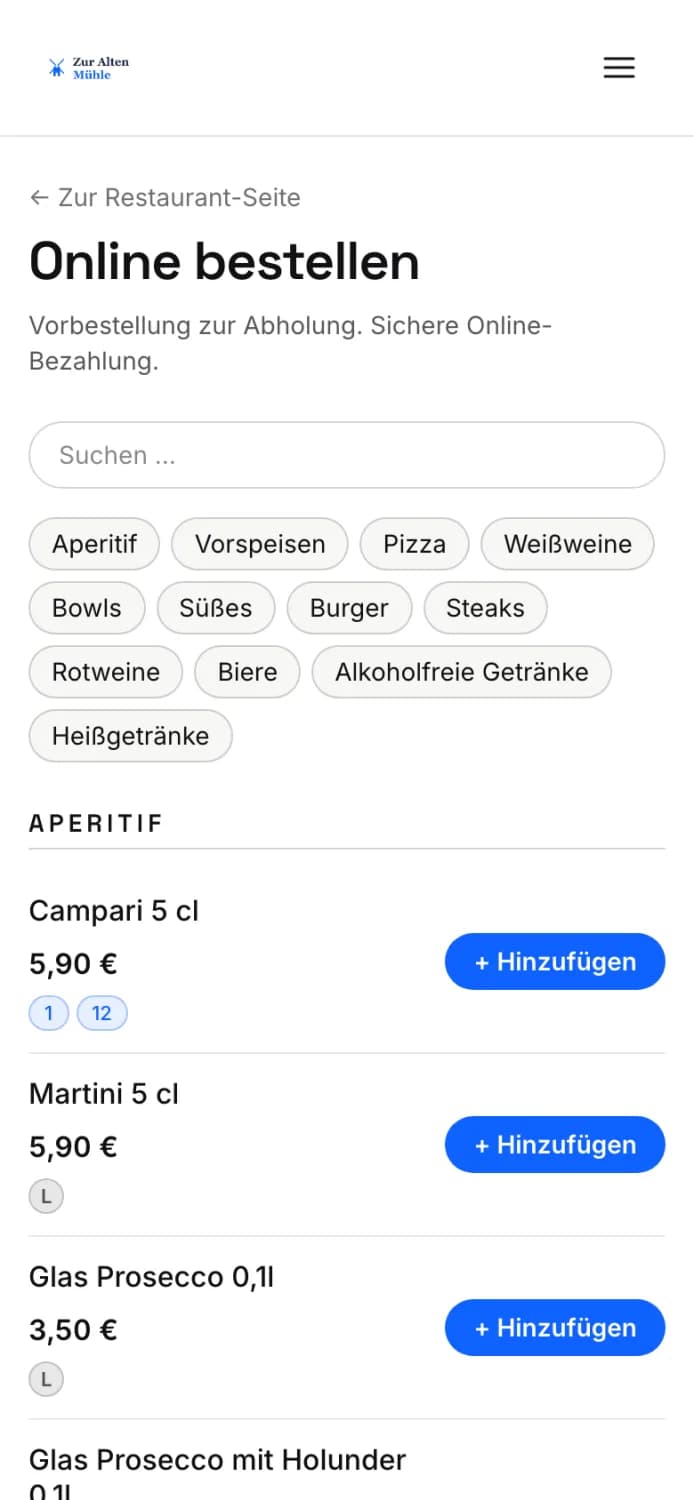
Step 2 of 5
Select item
At the top, the guest can search or jump to a category. + Add adds an item to the shopping cart. The abbreviations below the price are your allergens and labels; the legend is at the bottom of the page.
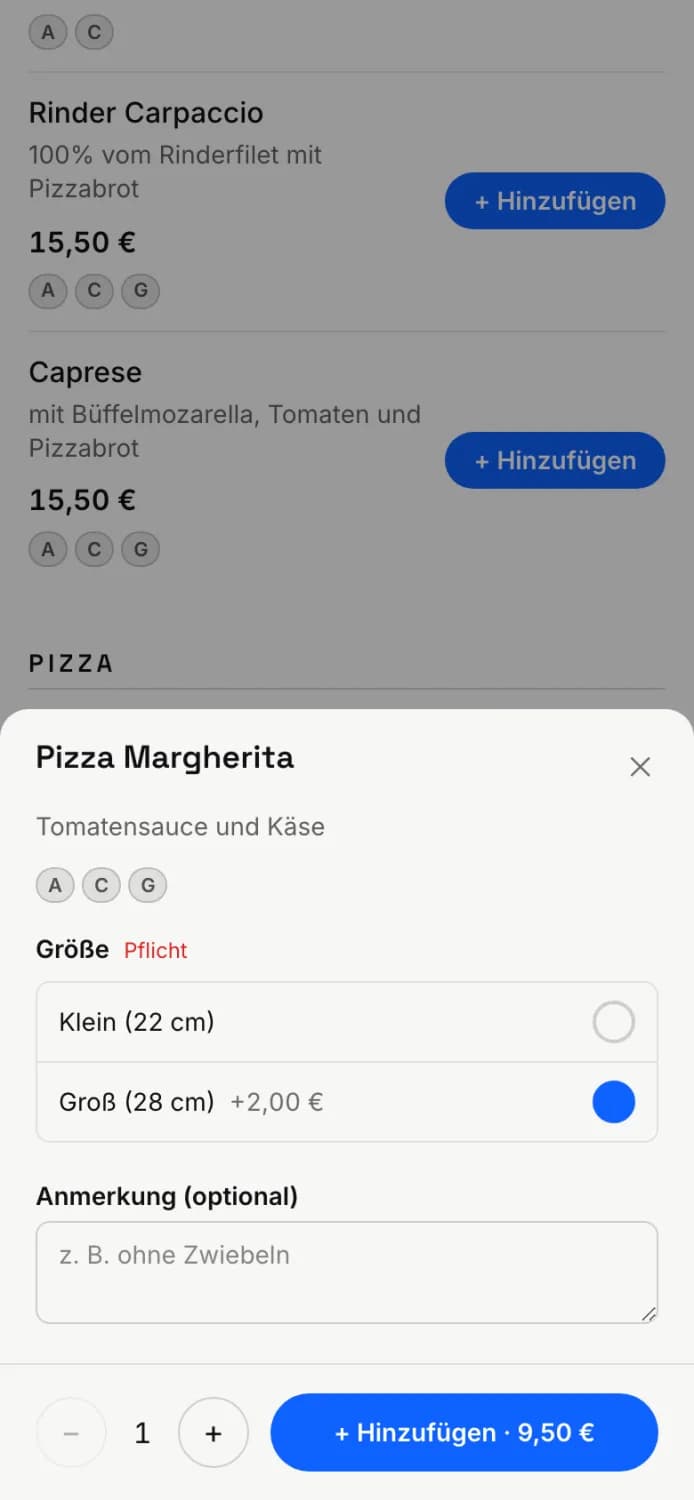
Step 3 of 5
Variants and Note
If an item has variations, the guest selects them from the window. Required indicates a selection that must be made. Under Note (optional), they can write, for example, "without onions".
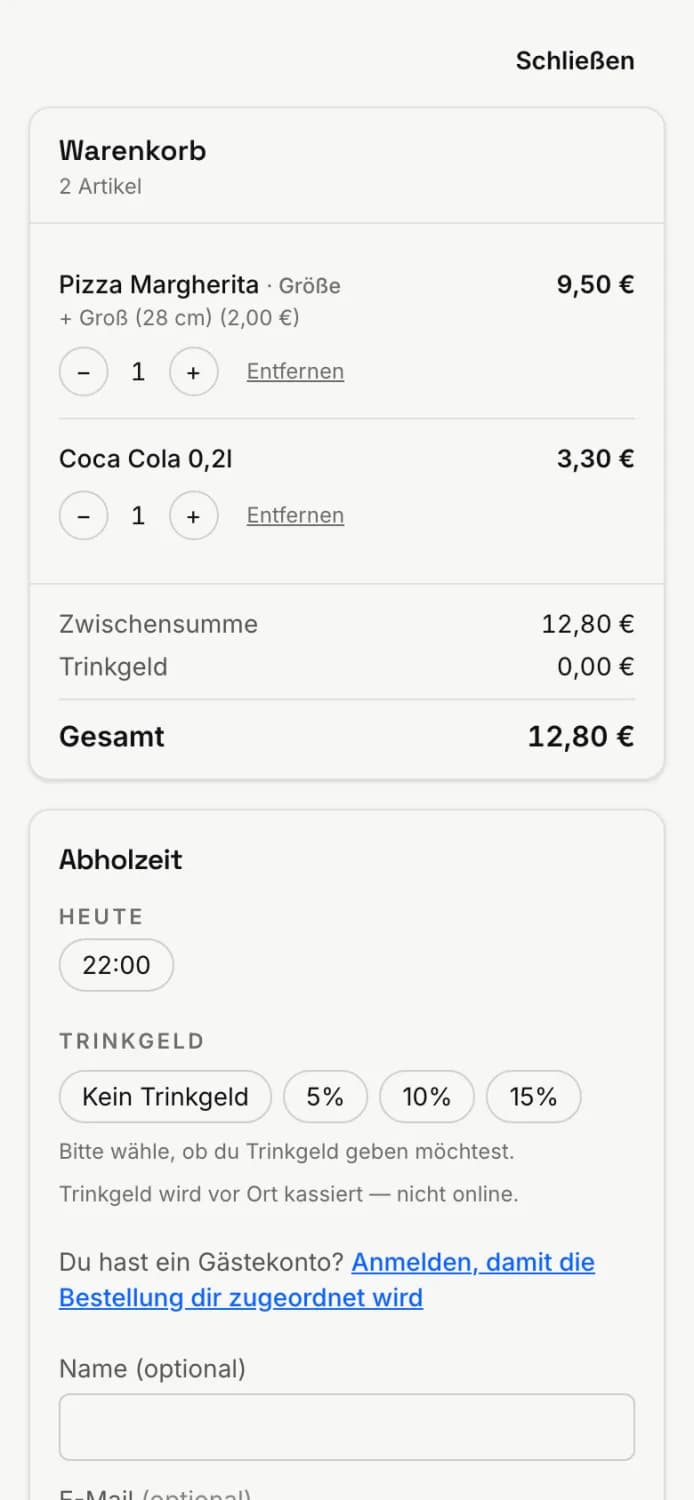
Step 4 of 5
Shopping cart and pickup time
Under Shopping Cart, the guest changes quantities and selects the Pick-up Time. Afterwards, they choose to leave a tip and optionally provide their name and email address.
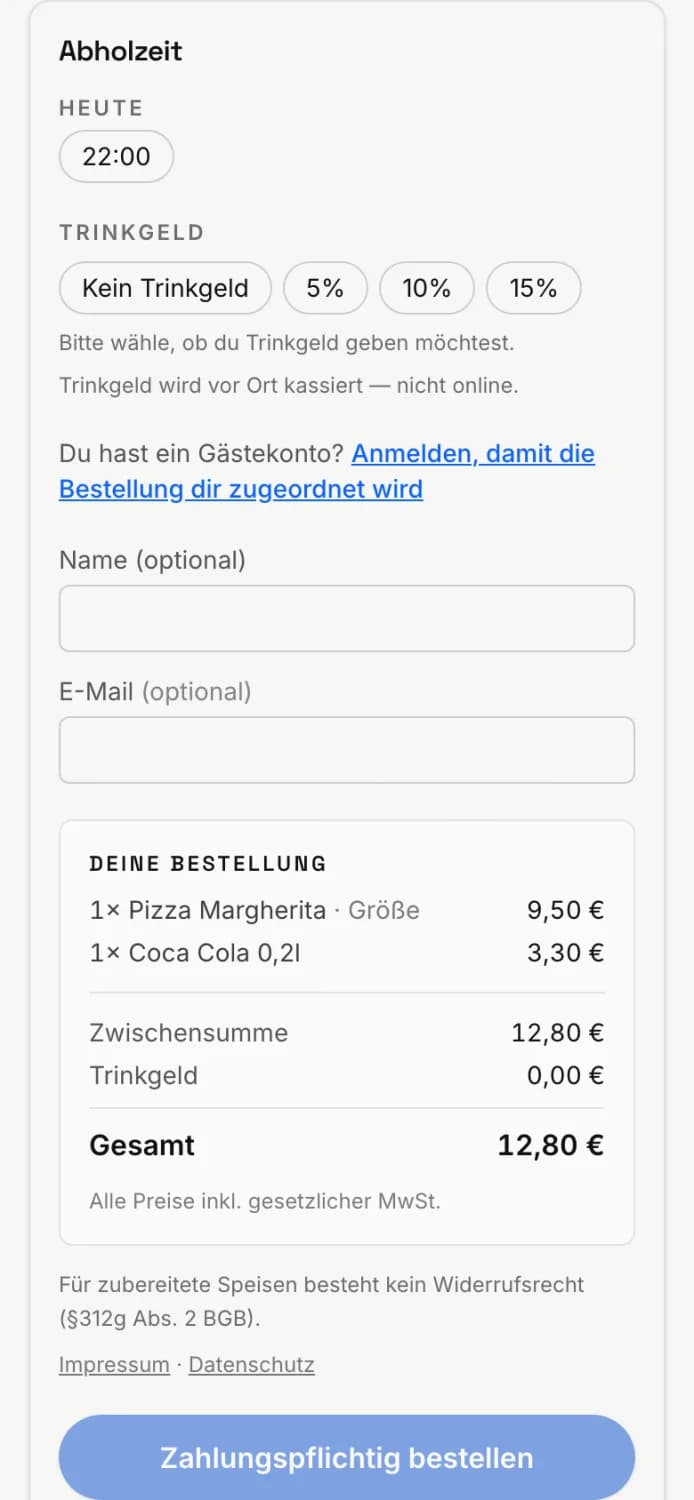
Step 5 of 5
Order
Clicking Order with obligation to pay sends the order to the kitchen. If the guest pays online, the payment page of your payment provider will open beforehand.
After placing an order, the guest sees their pickup number or code and the approximate pickup time. They can track their order status to see whether it has been accepted, is being prepared, or is ready for pickup.
Order at the table
When the guest scans the QR code at the table, Order at Table appears at the top, along with the table number. They select their order as described above, but always pay online. Afterwards, the message reads: Your order goes directly to the kitchen. Please remain at your table. The order then appears in the system for that specific table.
If guests cannot order
The restaurant is currently not accepting orders – no shift open, no printing center and no cash register with print online orders, or the acceptance process is paused.
Currently, no collection times are available – outside of opening hours or after the acceptance deadline.
Invalid QR code – please ask a server – the code has been rotated or the table has been cleared. Print new codes.
Not available online or Sold out on the item – the item is not available for this ordering method or is sold out.
Test the process yourself after setting it up. Instructions on how to do this can be found in the section "Setting up guest orders".