
The team area for employees
Employees can view their services in the browser, exchange and take over services, request vacation, and receive notifications.
In the team area, employees can view their shifts, swap or transfer shifts, take over open shifts, request vacation time, and indicate when they are unavailable. It runs in a browser at desk.service.de/team, also on mobile devices, without a POS app. You can send this item to your team.
Prerequisite: Your company uses the Max scheduling plan. You are connected to the company with your Servire account and have Team Area access; this is enabled until the owner disables it. Without access to the Web desk, you will be taken directly to the Team Area after logging in. With access, it will appear in the menu under Team Area as soon as you have a position assigned.
Sign in and add to your home screen
Register
Open desk.servire.de/team and log in with your Servire account, the same one you use at the checkout.
Place on the home screen
On your iPhone, tap Share → Add to Home Screen in Safari. In Chrome on Android, select Add to Home Screen or Install App from the menu. Then open Servire like any other app.
The riders
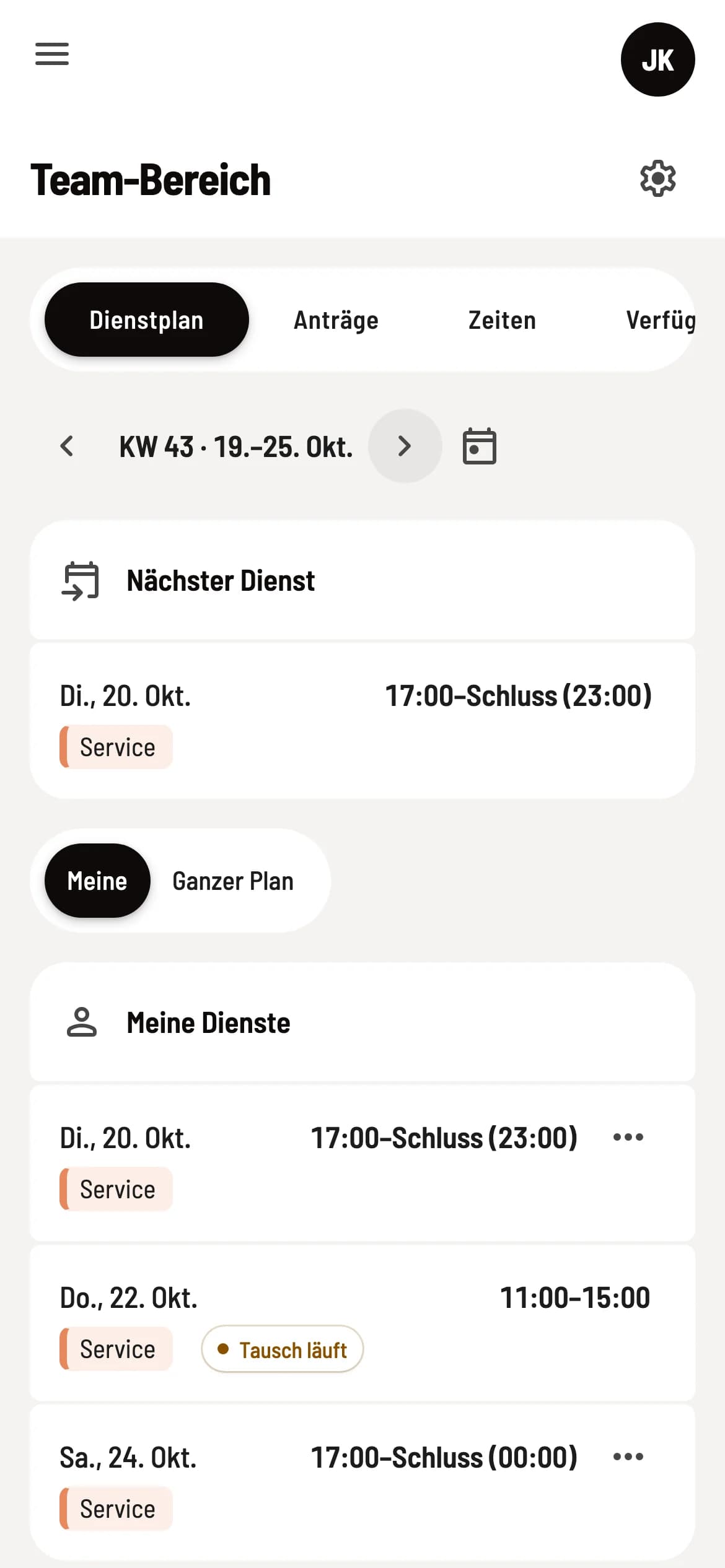
Duty Roster: At the top, you'll find Next Duty and Open Dutys for You, below which is the week as My Duty or Full Duty. Under My Duty, you'll also see your absences, whether requested or entered by the administration. For colleagues, instead of vacation or sick leave, it simply says Absent.
Requests: Requests to you, My requests with everything you have requested yourself, and under Vacation your vacation balance with Remaining vacation days. From October onwards, you can also select the next year there. With Request vacation or + in the header, you request vacation, time off in lieu, or other things, even for the next year.
Times: Your clocked hours for the month, including time tracking, timesheet (PDF), and request correction. Only available if your company uses time tracking.
Availability: Under When are you unavailable?, select the days of the week you are unavailable, either All Day per day or Time for only part of the day. Under Requested Days, add individual days using Add Day. After making changes, Save will appear at the bottom; if you leave the page before then, Servire will ask you to confirm. This applies immediately to the schedule, but is for guidance only and does not guarantee availability.
Exchange, hand over and take over services
Under … on your own shift, you select Transfer… or Exchange…. Transferring allows you to To a person or To all suitable candidates. When exchanging, you select a shift from a colleague with the same position; first they approve it, then the administration. If a request is pending, the shift will display something like Exchange in progress. You can take over an open shift under Open Shifts for you by selecting Take over. It will then display Take over requested, and Withdraw cancels the request. The administration decides who receives the shift. You respond to requests directed to you under Requests by selecting Approve, Reject, or Take over.
Messages and calendar subscription
Team settings
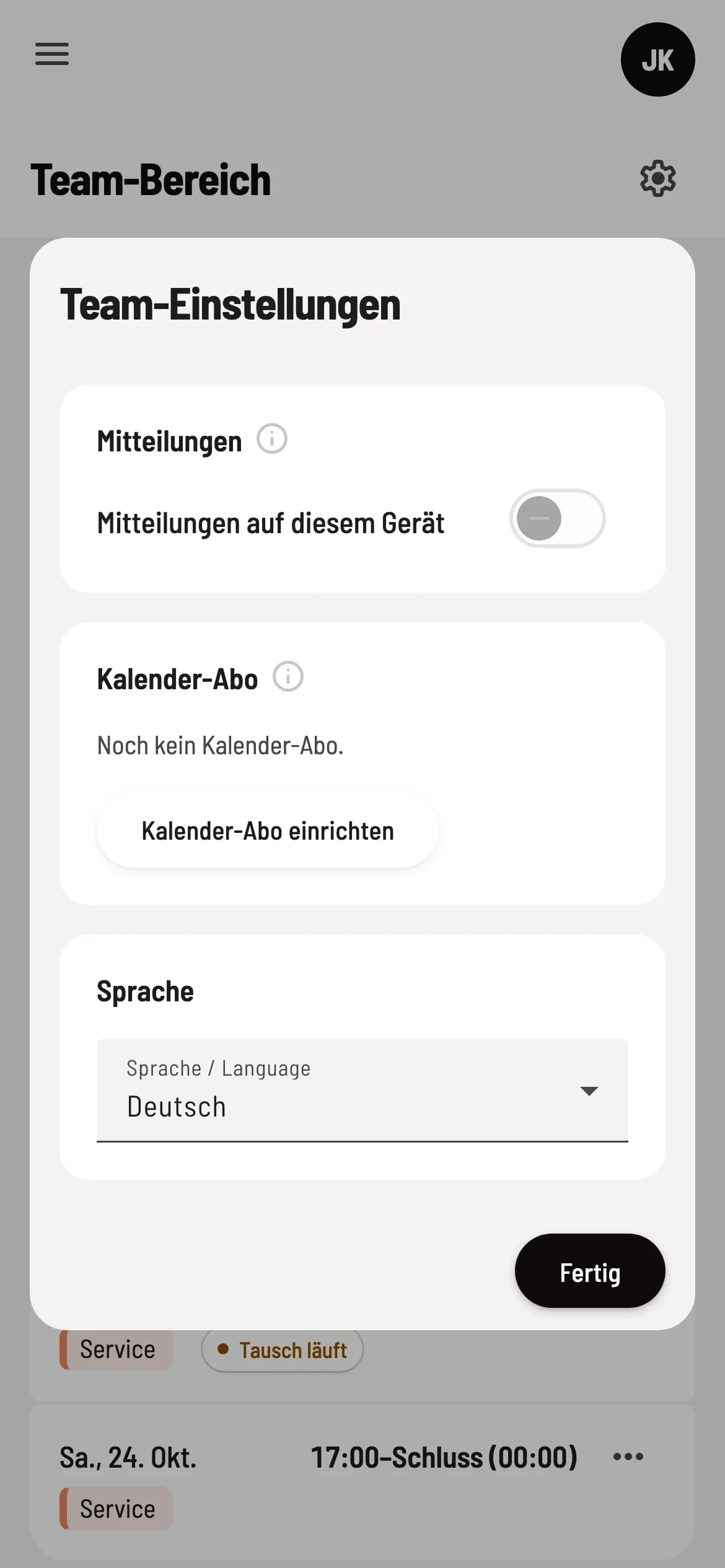
You can open the Team Settings via the gear icon. Notifications on this device will inform you of new plans, service changes, and exchange requests, individually for each device. You will always receive email notifications.
On iPhones, notifications can only be enabled after you've added the Servire to your home screen in Safari via Share → Add to Home Screen and opened it from there; until then, the window will display On iPhone, add to Home Screen. Notifications don't work in a private browser window; use a regular browser window. If they are blocked in your browser, allow them in the website settings and reload the page. If you're no longer receiving notifications on a device, open the team section there: Opening it will automatically re-enable notifications.
Set up calendar subscription generates a personal link for Apple, Google, or Outlook. It displays your published services for the last 14 and the next 90 days and updates automatically. You'll only see the link once: Use Open in Calendar or Copy Link to add it. Generate New Link invalidates the old one, and Cancel Subscription deactivates it.
Do not share the calendar link: Whoever has it can see your services.
If the duty roster is deactivated or your company no longer has a Max system, the last updated status will remain visible. You will then be unable to submit applications.