
Publish the duty roster and send changes
This way you give your team a week off, notify those affected, and document every publication.
As long as you're planning, your team will see the current status. Only after Publish will the week appear in the team area, in the calendar subscription, and on the notice board. You can send any subsequent changes using Send Changes.
Prerequisite: The scheduling feature is part of the Max plan and must be enabled. Scheduling is possible for the account holder and anyone with the May manage the scheduling permission.
publish this week
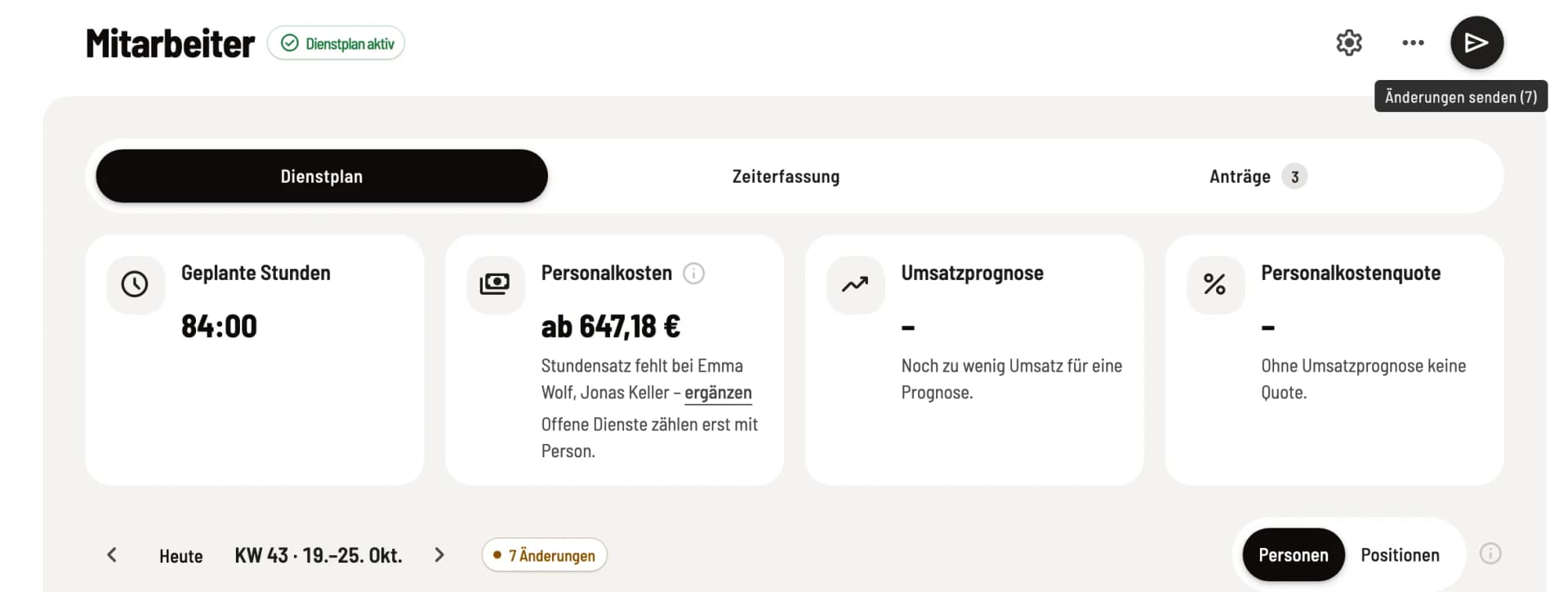
Step 1 of 2
Send button in the page header
Click the paper airplane button in the top right corner. Its tooltip will say Publish week or, if the week has already been published, Submit changes (3) with the number of pending changes. The same button opens the pill icon next to the calendar week, displaying information such as Not published or 3 changes. If nothing is pending, the button is locked.
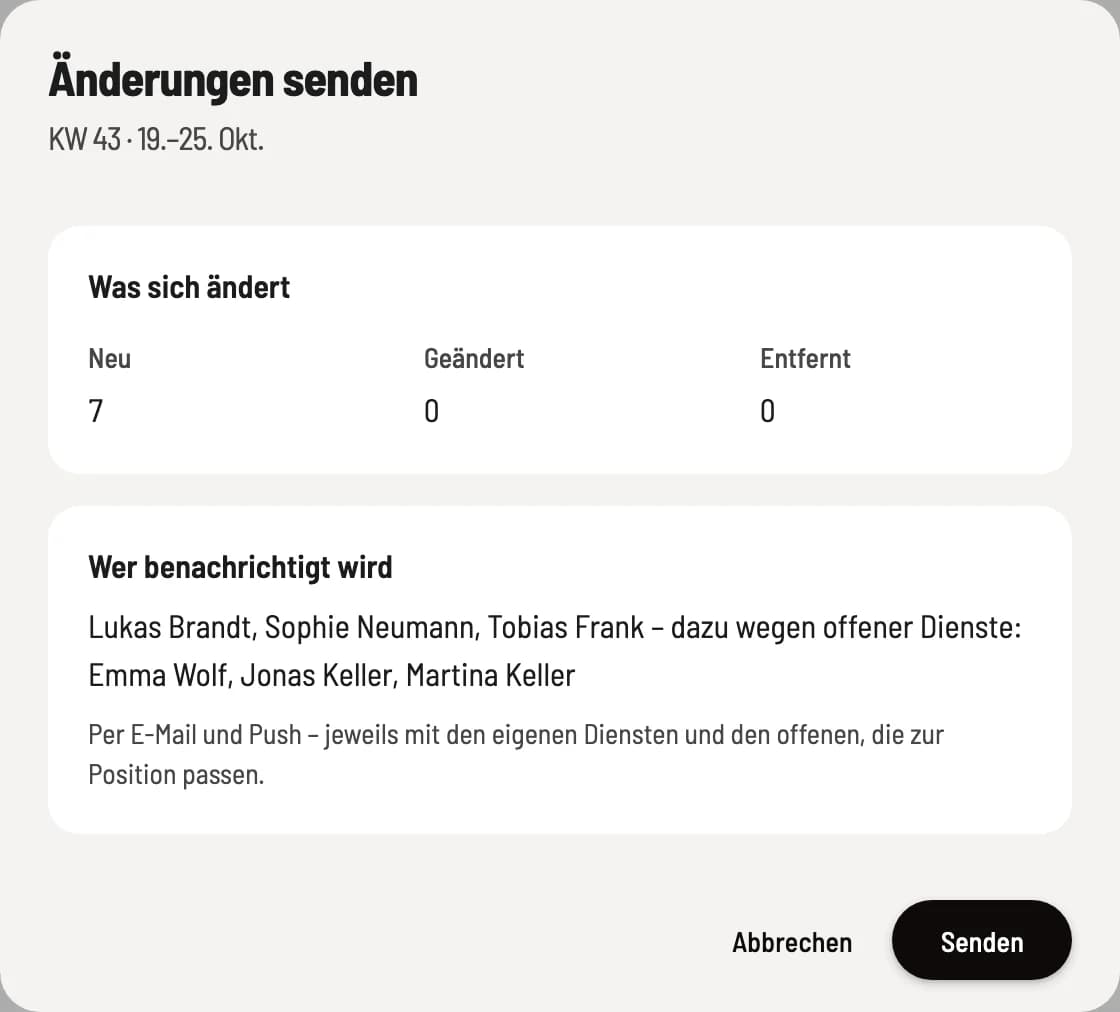
Step 2 of 2
Check and confirm
Under What's changing, you'll see how many services are new, changed, or removed, along with any changes to daily notes. Who gets notified lists the names, including those who only receive a message because of open services. Below that are notes for each person; these don't delay anything. Clicking Publish or Send will show your team the updated status.
Only changes that actually occur compared to the published version are counted: If you revert a service to its exact published version, it is no longer considered a change. You can restore a removed, already published service before sending it by clicking on the crossed-out service icon; see Scheduling services in the weekly plan.
Who will be notified
Only affected individuals will be notified: those with a new, changed, or discontinued service, and, in the case of new or changed open services, all those with the relevant position. Each person will receive one email with their services and a link to the team area, as well as a notification on every device where they have notifications enabled. Those who are not authorized to use the team area will not be notified; if no one is affected, the window will display No one – no one with team area access is affected. After sending, you will see how many people were notified.
When you release a swap, transfer, or takeover, the change is published immediately without you having to send anything.
"Until the end" is stipulated.
When publishing, Servire records the end time of each Until Closing shift; the team section will then display something like 6:00 PM – Closing (11:00 PM). If you subsequently change the opening hours, this will not affect any published shifts.
Proof and posting
Every publication is logged permanently: when, by whom, and with the complete content of each service. This proves, for example, that a service was announced in a timely manner for on-call work. The Publications section in the page header displays the last ten applications, including approved ones, each with the number of changes and delivery date. You can download the published version for posting via … → PDF for posting, By person, or By position.
Memories
If time tracking is active, Servire will remind a person 15 minutes after their shift starts if they haven't clocked in. After 30 minutes, the administration will be notified who is still missing: the employee and anyone with authorized to manage the schedule. You can disable both of these features in the Schedule Settings under the Reminders tab.
If the Web desk reports The plan has since been changed, someone else has been working on the plan. Reload the week, check the changes, and then publish.