
Personnel costs and sales forecast in the duty roster
This is how you read hours, personnel costs, forecast and personnel cost ratio per day and week.
Above the weekly schedule, directly below the tabs, are up to four key figures: Planned Hours, estimated Personnel Costs, Sales Forecast, and Personnel Cost Ratio. Hours, costs, and ratio per day are shown in the Total row at the bottom of the grid. Days without shifts are shown with –, while closed days remain blank. All figures are based on the draft schedule and will therefore change during the planning process. Hours are displayed in hours and minutes, for example, 38:30.
Prerequisite: Planned hours are visible to everyone authorized to manage the work schedule. Costs are only visible to those who also have access to payroll data: the owner and anyone with Allowed to manage time tracking permission; without this permission, the Total line will only display hours. Forecasts and quotas also require View Statistics. Hourly rates are derived from the time tracking system; see Entering Hourly Rates.
This is how it's calculated.
Personnel costs are an estimate: planned working time without breaks multiplied by the hourly rate on the working day, plus the surcharges for night, Sunday and public holiday if the time recording system calculates them, and the payroll tax surcharge.
If the hourly rate is missing for some services, from appears before the costs and quota, for example, from €1,240.00: This is a minimum. Below that, hourly rate missing for… lists the individuals, and add leads to the employee list. If the rate is missing for all services, – appears. Open services only count once an individual has been entered.
The sales forecast is the same as in the statistics: the expected gross sales for the day. Closed days are counted as €0. If data is missing for a forecast, – is displayed, followed by Insufficient sales for a forecast. More information can be found in Outlook, Targets, and "Ask Your Numbers".
The personnel cost ratio is personnel costs divided by the forecast. Green means: below your target, which is shown below, for example, Target 30%. Without a forecast, it says No ratio without a sales forecast.
Set target and serve
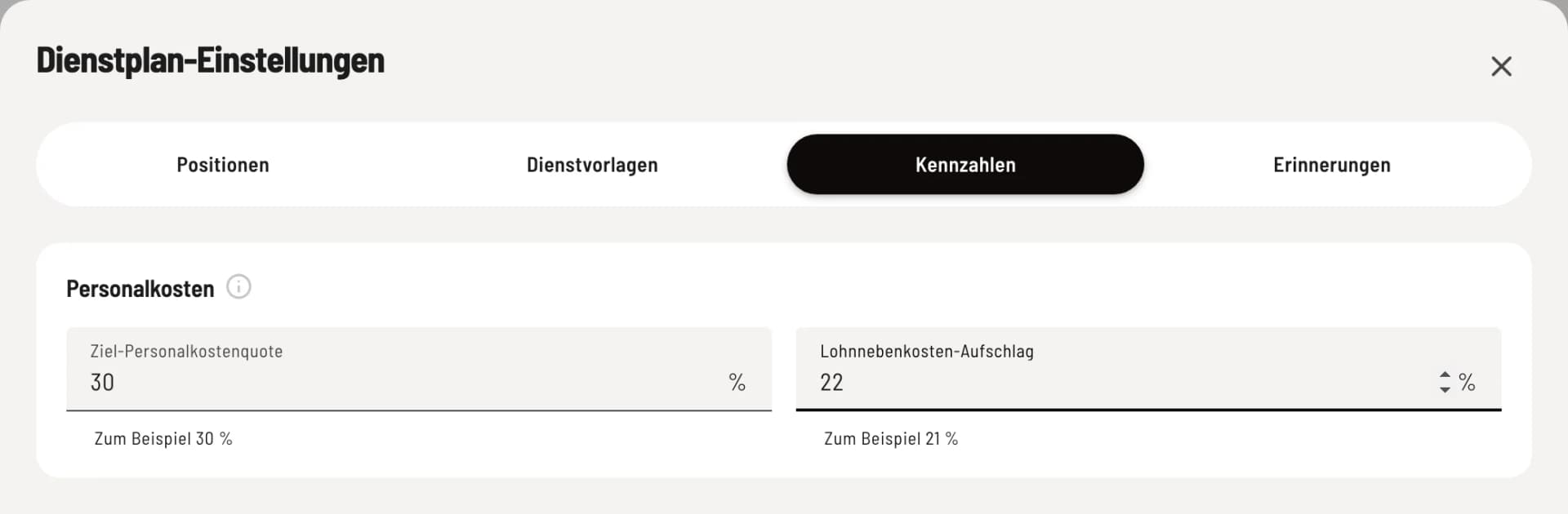
Key Figures
Open the shift schedule settings via the gear icon and then select key performance indicators. The target personnel cost ratio, for example 30%, determines the point at which the ratio is no longer considered favorable. The payroll tax surcharge, for example 21%, roughly calculates social security contributions. A blank field means no surcharge is applied.
Target and actual
If time tracking is active, the schedule compares published shifts with clocked-in times. If a shift deviates, it displays a line with a colored dot: 12 min late (more than 5 minutes after the shift start time), +0:45 h longer, −0:20 h shorter (more than 15 minutes difference), or Non-show. The clocked-in time is also shown, for example, Actual 10:12–19:40. On-time shifts remain unmarked. Clocked-in times for no shift are shown as clocked in without shift in the schedule. Cost information is only visible to those with payroll data access.
The costs are a planning aid, not a payroll statement. The actual amount paid is shown in the payroll export.