
Copy week and automatically fill open positions
This way you take over a week as a draft and fill open shifts according to fixed rules.
Most weeks are similar. With Copy Week you take over the shifts from another week, and with Automatically Assign you distribute open shifts to suitable people. Both only create drafts: your team won't see anything until you publish.
Prerequisite: The scheduling feature is part of the Max plan and must be enabled. Scheduling is possible for the account holder and anyone with the May manage the scheduling permission.
Copy week
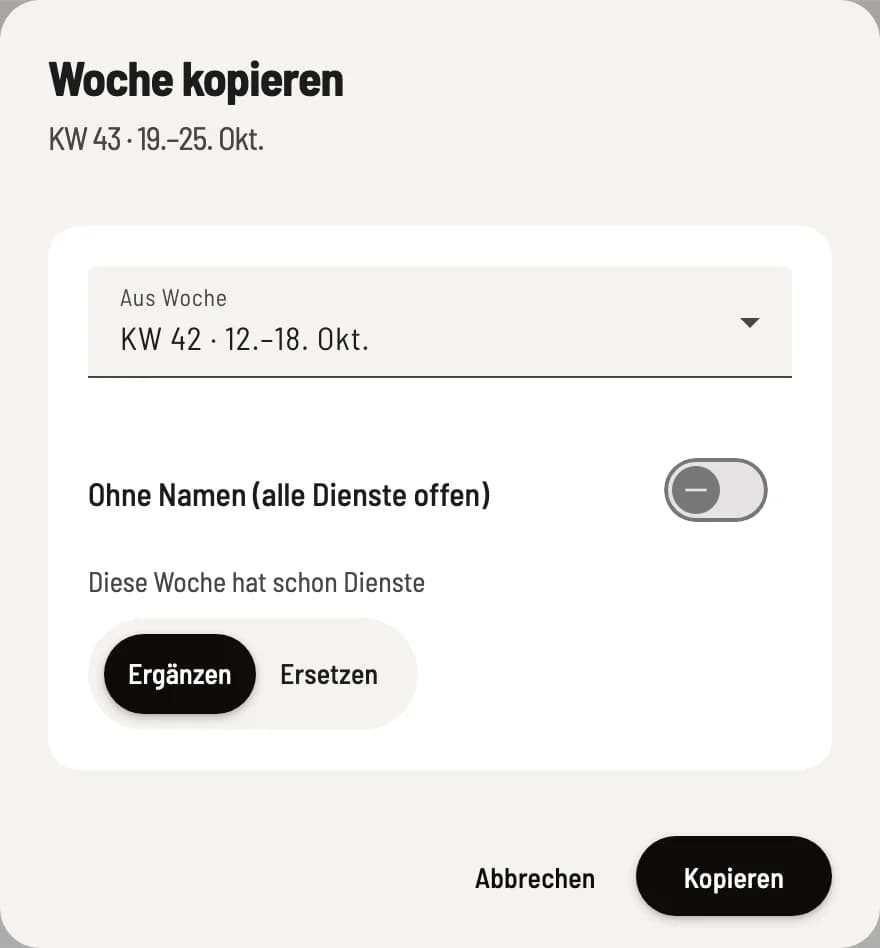
Select source week
Open the week you want to fill in and select Copy Week from the … menu in the page header. Under From Week, select one of the last eight weeks. No Name (All Shifts Open) only copies times and positions; all shifts are placed in Unstaffed. If the week already has shifts, select Add or Replace; Replace first removes the shifts from the target week. Copy saves everything as a draft.
Copying is done on the same day of the week, at the same times, and in the same position.
Days on which your business is closed during the target week will be skipped.
If a person is absent or no longer connected during the target week, their service will be set up publicly.
Services with an archived position will be adopted without a position.
Services that have already been published and that have been removed by Replace will only disappear for your team after Submitting Changes.
If the week is empty, the option Copy previous week will appear above the schedule. This copies the previous week's schedule, including its name, without opening a new window. If the previous week has no services, a message will inform you, and nothing will happen. Conversely, you can delete all services for the week via … → Clear week after a confirmation prompt: Drafts disappear immediately, published services disappear the next time you submit.
Automatically fill
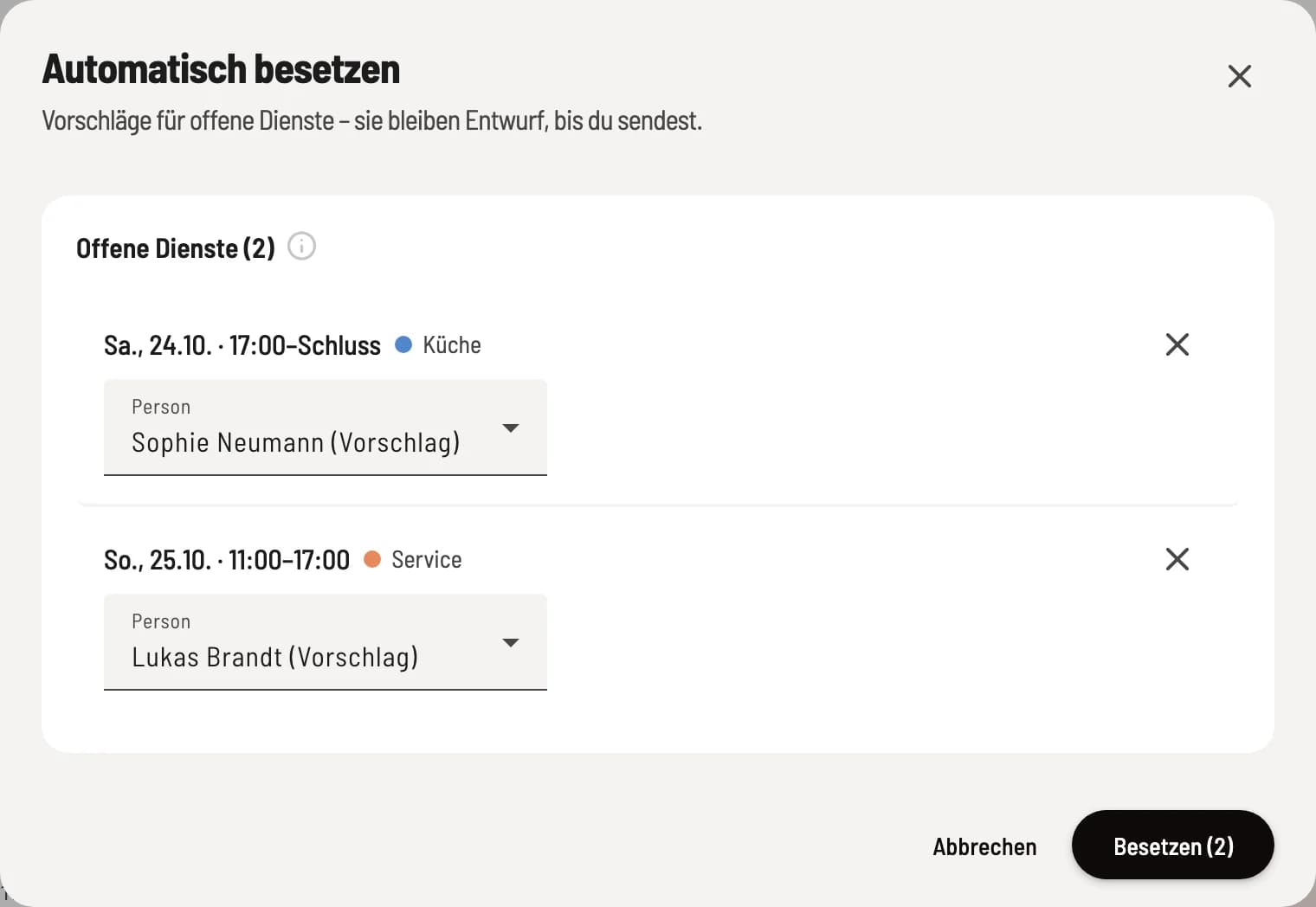
Review proposals
In the Vacant row, click Automatically fill. The preview shows the suggested person and relevant information for each open position. You can select a different suitable person for each row, leave it open, or remove the row marked with a cross (Discard). Fill saves the suggestions as a draft.
The rules are fixed. With the same plan, the result is always the same:
Only those who hold the position of duty (or, in the case of a duty without a position, those who hold any position at all), are not absent, and have neither entered "cannot work" nor a requested day off nor a fixed day off on that day are eligible.
Excluded is any allocation that would trigger an overlap, too short a rest period, too long a daily working time, a youth protection, mini-job or on-call notice, or an exceeding of the weekly target.
First up are the services for which there are the fewest suitable people.
The shift goes to the person who is furthest below their weekly quota; in case of a tie, the person with fewer shifts and hours per week gets the shift.
If a shift remains open, the preview states the reason: nobody has the position, all suitable candidates are absent, everyone has reached their weekly quota, or the rules do not allow anyone.
Copy the previous week's schedule without names and then let it automatically fill in the remaining slots. This way, the schedule takes into account vacation days and requests for the new week.