
Record absences and manage vacation accounts
This is how you enter vacation and sick leave, count vacation days and manage your vacation entitlement.
Absences appear as a block in the employee's row on the duty roster. There are four types: Vacation, Sick Leave, Time Off in Lieu, and Other. Vacation time is deducted from the employee's vacation balance. Approved absences also affect the employee's time tracking and payroll export.
Prerequisite: The duty roster is part of the Max tariff and must be activated. Scheduling is possible for the owner and anyone with the May manage duty roster right. Only the administration enters illness. Employees themselves request vacation, time off in lieu, and other requests in the team area; decisions are made in the Requests tab.
Enter absence
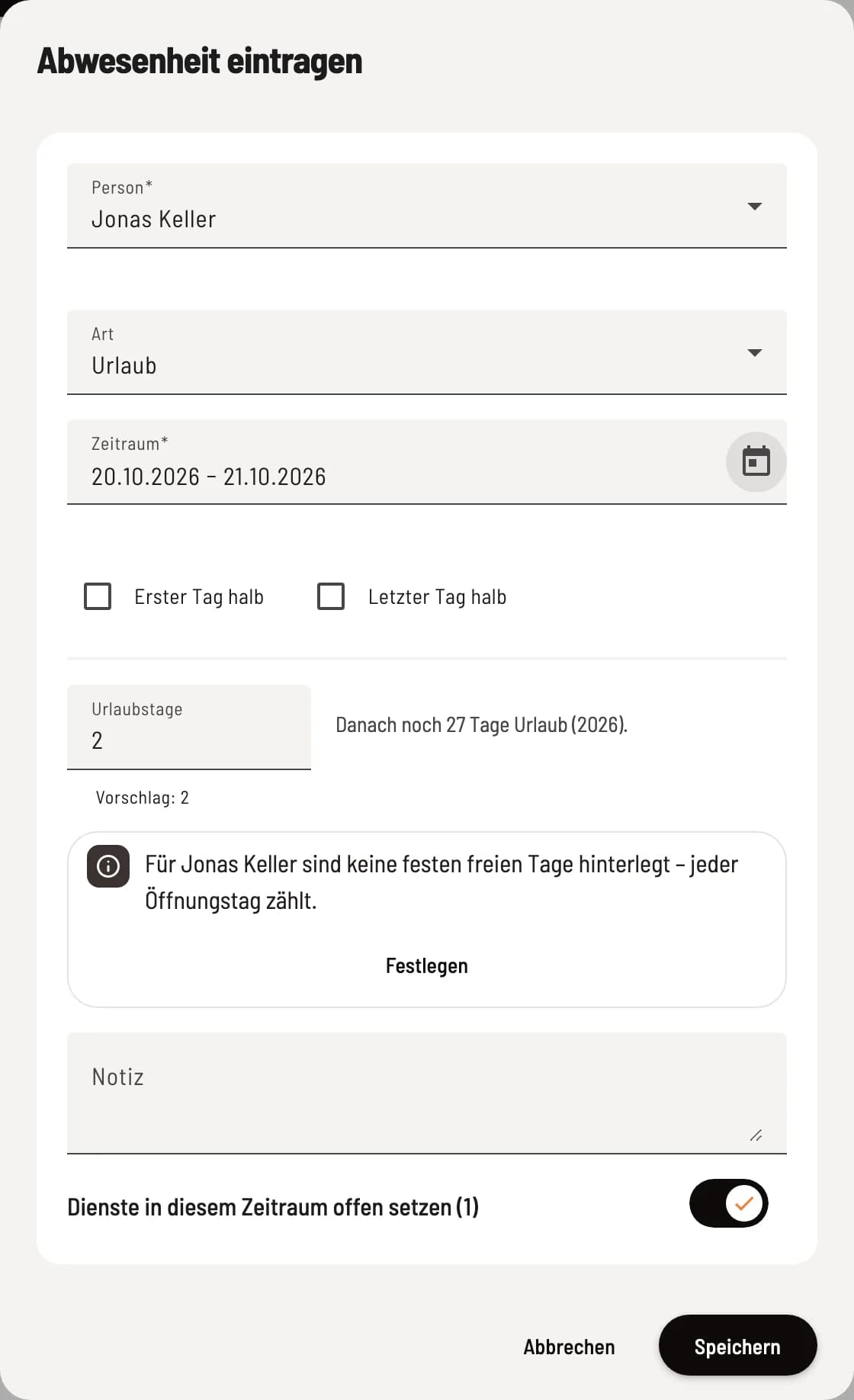
Enter absence in window
In the schedule, click on the person's cell; the Enter absence… menu will open. On your phone, tap Enter absence below the day list and select the person. Choose the type and period using From and To, if needed First day half or Last day half, or Half day for a single day. Under Other, select Paid to determine whether the time will be credited. You can change or delete an entered block of time by clicking on it, or on your phone by tapping it in the day list.
If the person already has shifts scheduled during the period, Set shifts open during this period will move them to the Unoccupied row. Servire will not accept a second approved absence during the same period. The person can see their absence in the team area under My Shifts; they will receive a notification unless they are Sick.
A sick note should only state the fact of absence and the period of absence. Do not enter any diagnoses in the note; the window also indicates this: Do not enter a diagnosis – all administrators will see the note. Colleagues in the team area will only see Absent, never the type of absence.
Vacation days count
The schedule suggests the number of vacation days for vacation planning. Rest days, special closing days, public holidays, and the employee's fixed days off are not counted; half days are counted as 0.5. If no fixed days off are assigned to the employee, every day the company is open is counted; the corresponding note leads to their settings when you click Set. Review the suggestion and change the number if necessary; Accept suggestion restores it. Next to it is how much vacation time remains for the year. If the entitlement for the year is missing, you can add it immediately using Enter entitlement. Vacation taken over the New Year period is counted separately for each year, for example, as Vacation days 2026 and Vacation days 2027.
Maintain vacation entitlement
You enter the entitlement for each person in the Edit Employees dialog, in the Schedule section under Vacation. At the top, you select the current or next year; below, you'll find Vacation Entitlement and Carryover, which represent the remaining days from the previous year; half days are possible. This way, a request for January will be processed against the correct entitlement in the fall. Remaining vacation days are entitlement plus carryover minus approved vacation days. Employees can view their vacation balance in the team area under Requests in the Vacation section, and from October onward, this also includes the balance for the following year.
Impact on working time account and wages
Vacation and Sick leave credit one-seventh of the weekly target hours per day, half a day credits half. The working time account calculates the target hours as if it were a public holiday.
Other only credits if Paid is enabled.
Time off in lieu does not credit anything; it is used to reduce overtime.
Without a weekly target, an absence doesn't count towards anything.
In payroll export, vacation and sick leave are recorded as hours on separate wage types; see Setting up payroll export.