
Change the language of the POS app
This way you can operate the cash register in a different language than your device – everything printed remains in German.
The POS app usually displays in your device's language. Under Settings → General, you can change the language, for example, to English for a server, without changing the entire device settings. This choice only applies to that specific device and to everyone who logs in there.
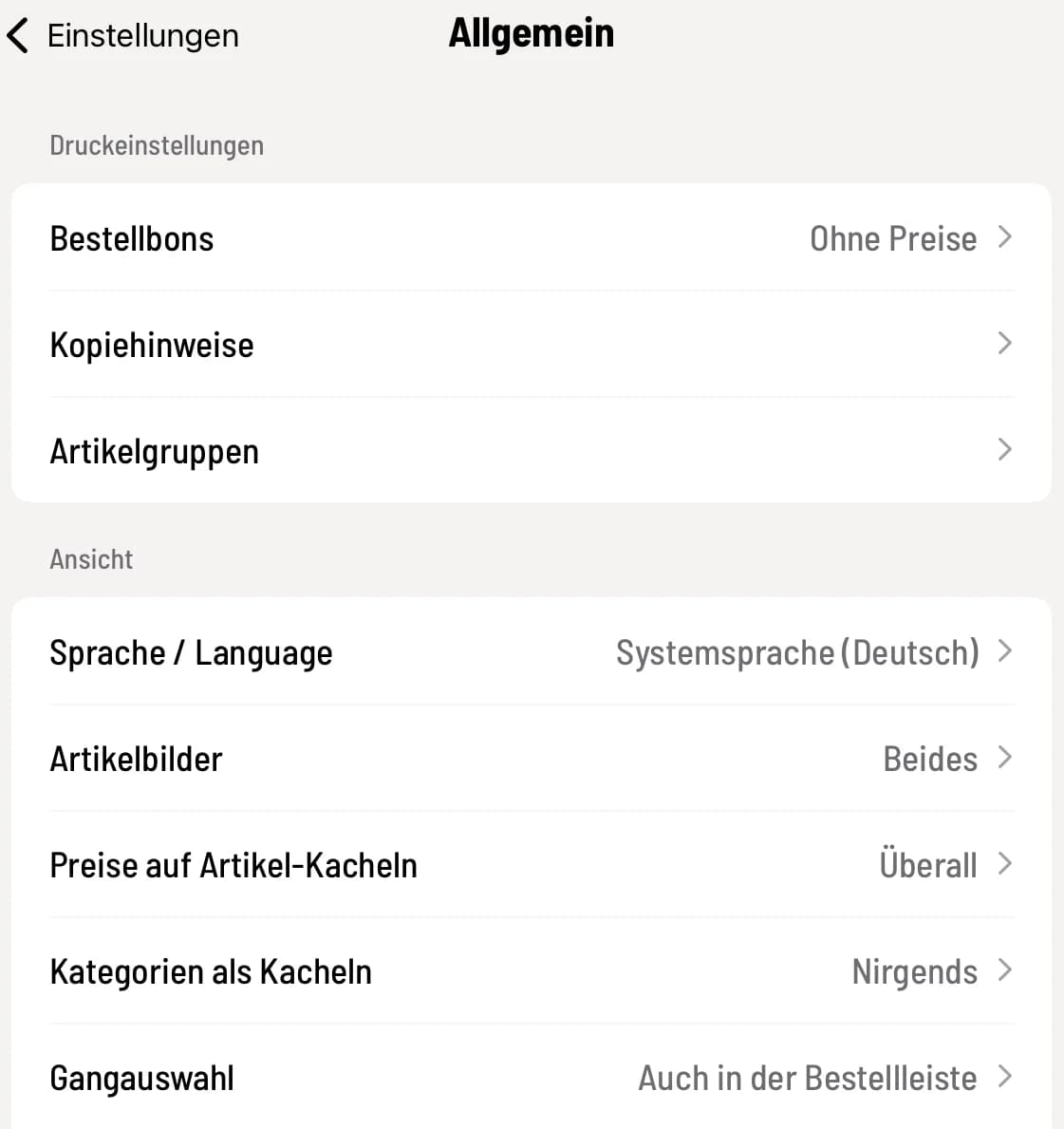
Step 1 of 2
Open language bar
Tap the house icon in the top left corner, then tap Settings → General. Under View, you'll find Language at the very top. This line is intentionally labeled in both languages so you can find it even if you're speaking a different language.
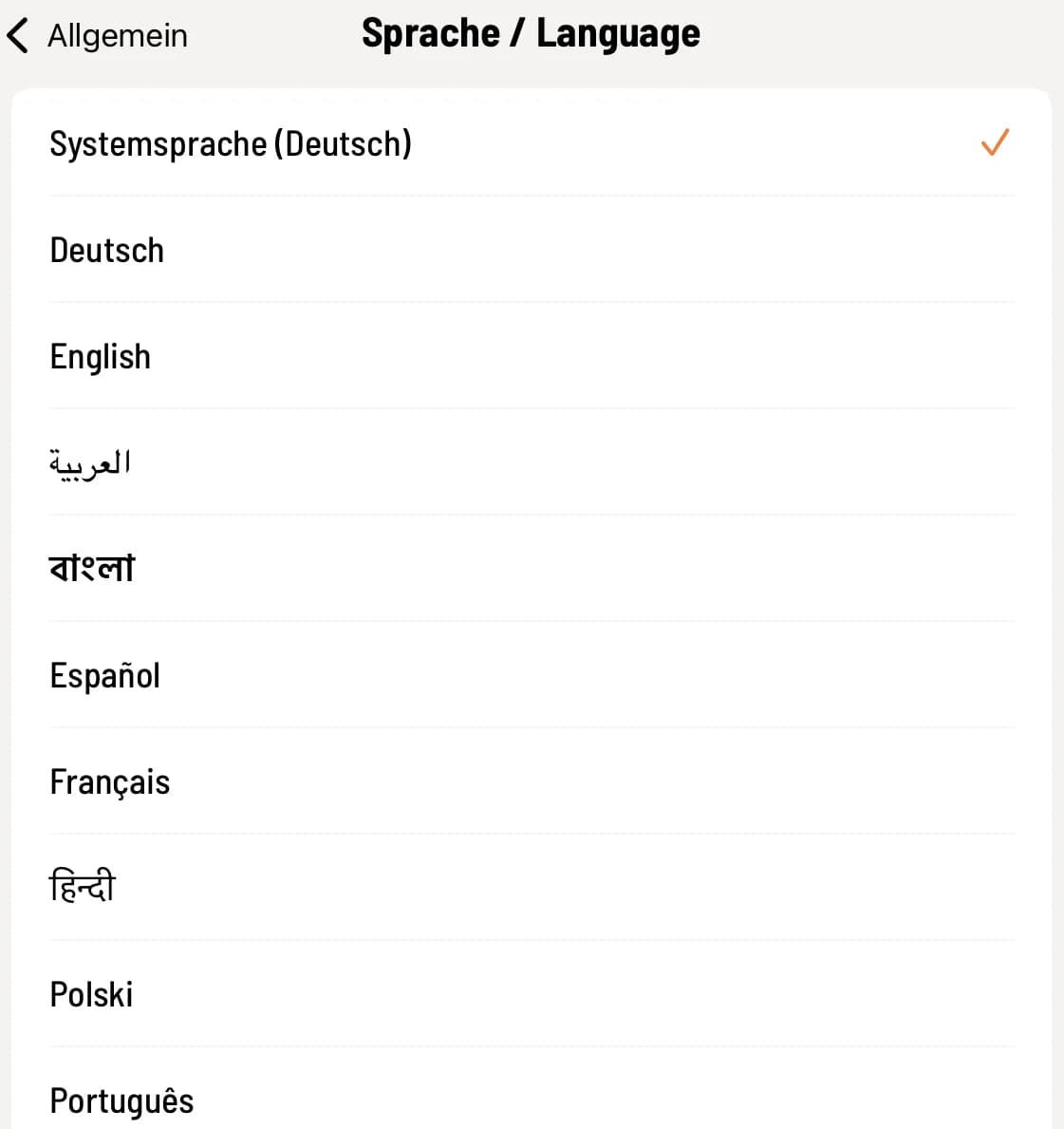
Step 2 of 2
Choose language
Tap on the desired language. Each is listed in its own spelling, such as English, Español, or Türkçe. System language reverts to the device's current language; the current language is shown in parentheses.
The available languages are German, English, Arabic, Bengali, Spanish, French, Hindi, Polish, Portuguese, Russian, Turkish and Chinese.
Restart after switching
The system will switch to a new language upon restart. You will remain logged in, and open tables and your current shift will be retained.
iPad and iPhone: A notification will appear announcing the restart. Tap OK, the app will close. Then reopen it.
Android: The app restarts automatically. If it is currently printing, it waits until the receipt is ready.
Receipts and vouchers remain in German.
The selected language only applies to the cash register screens. Everything the customer or the tax office sees remains in German.
All receipts and reports: customer receipt, order slip, X and Z-report, employee report, test receipt
PDF receipts
The customer display, i.e., the customer screen and the amount you show the guest when paying.
The texts that the cash register itself writes into receipts, for example in case of cancellations, discounts or deposits, are therefore also displayed in German in the Web desk and in the reports.
What you type yourself, such as a note, remains exactly as you wrote it.
The cash register displays amounts in the writing system of the selected language; for example, in Arabic, it uses the numerals common there. When entering the amount, you type the numbers as usual; the cash register calculates in euros.
You can set the language of the Web desk separately for each browser: Manage account settings in the Web desk.