
Read order cards on the kitchen monitor
What color, time, table or pick-up number and the blocks on an order card mean.
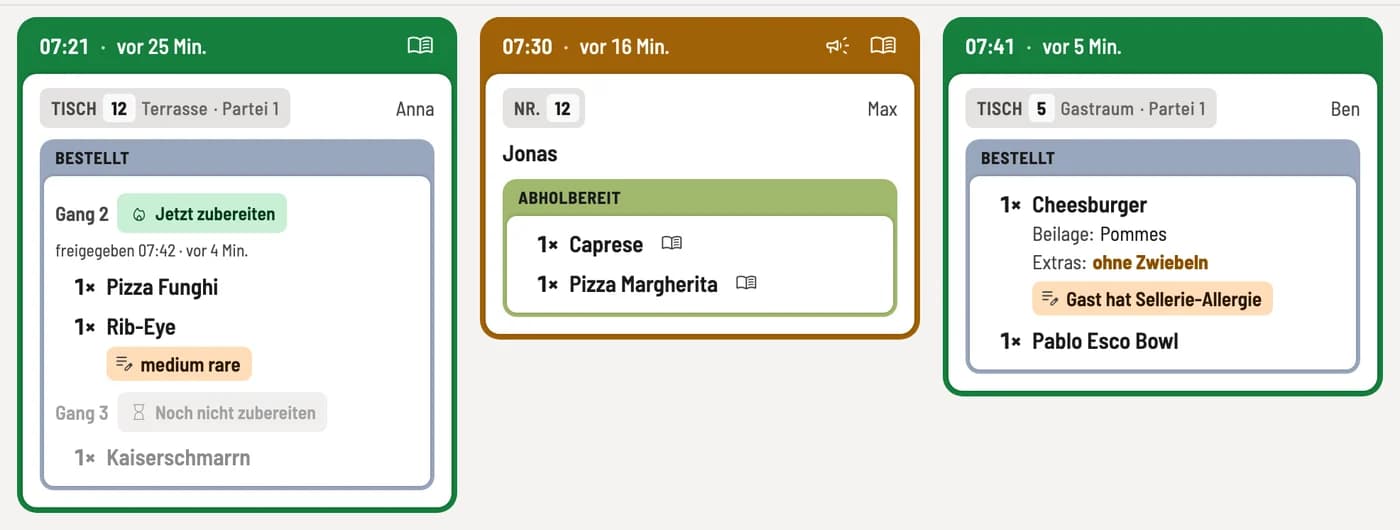
Each order is represented by a card. At the top it shows how long it has been waiting, below that who it is for, and then the items according to their processing status.
The head
The header displays the order time and how long ago it was placed, for example, 20:41 · 12 mins ago. Its color is a traffic light: green, yellow after 10 minutes, red after 30 minutes. For courses, the time counts from when the order is called; a waiting course does not change color on the card. You can set the time limits in the settings under Colors. The recipe book and the megaphone icon, which you can use to call the guest back, are located at the top right of the order card, if needed.
For whom
Below this, it states where the order is going: Table with number and area, the pick-up number such as No. 12 for orders placed at the counter, Pick-up for online orders, or Delivery. On the right, it shows who placed the order. For pick-up and delivery, the guest, pick-up time, and payment details are also included, such as Payment upon pick-up or Awaiting acceptance.
The blocks
The items are displayed in colored blocks, one for each stage: Ordered, In Progress, and Ready to Serve, or Ready for Pickup. Items that are completely finished disappear from the screen and are listed under Completed.
Notes are highlighted in yellow below the position.
Omissions such as "without onions" are highlighted in bold and color.
Courses: Above each course is labeled Course 2 with Prepare now or Do not prepare yet. After the course is selected, the date and time are displayed below, for example, "Released 9:30 PM · 4 mins ago". Courses that are pending are highlighted in a lighter color.
CANCELLATION: Cancelled items are crossed out.
Reordered 20:55: With Reorder to table card, a reorder is added to the table's open card; otherwise, it gets its own.
Top and right
The header displays the number of open orders. On wide screens, it also shows waiting times and orders from the last hour; otherwise, it's located behind Statistics.
The Overview on the right counts the open positions for each product group, such as how many pizzas are pending. With Overview by Status, it lists items as Preparing Now, In Progress, and Waiting for Order.
Check off items, retrieve them and report sold out: operate the kitchen monitor.