
Add and report forgotten working hours
Here is how management can add a forgotten shift, and how employees can report missing time themselves.
If someone forgot to clock in entirely, their hours are missing. Management can add them, or the employee can report them. The entry remains permanently marked as added: in the daily review, under All entries, in the hours record, and in the minimum wage log, each with date, name, and reason.
Prerequisite: Time Tracking is part of the Max tariff and must be enabled. The owner and anyone with the permissions Use Web desk and Manage time tracking & wages can add hours; only the owner can add their own working hours. For a month that has been submitted to payroll and locked, you can neither add hours nor submit a report.
Adding hours as management
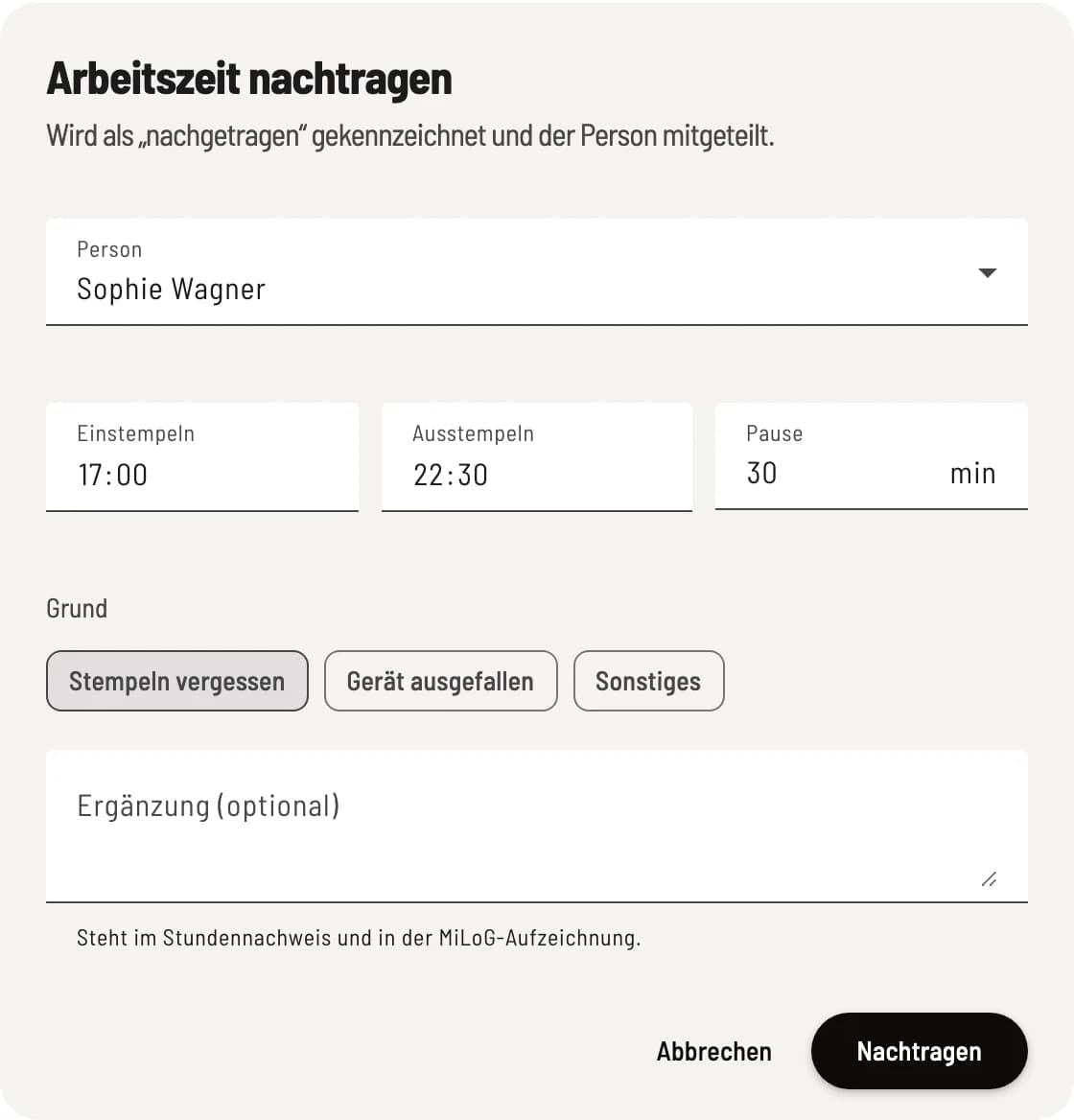
Add working hours
Under Employees in the Time Tracking tab, open the day and click Add. Select the Person and enter Clock in, Clock out, and the Break in minutes; if the end time is before the start time, the shift ends the following day. Choose a Reason: Forgot to clock in, Device failure, or Other. For Other, write a short Explanation, otherwise it is the Note (optional). Confirm with Add.
Servire calculates wages, bonuses, and working hours law rules just like with a clocked-in shift. The break is treated as unclocked; the wage export asks for confirmation later. If the time overlaps with another shift for that person, Servire rejects it. The person receives a notification.
If there was a scheduled shift, it is faster: In the daily review under Not clocked in, you can add it using Apply.
Reporting missing time as an employee
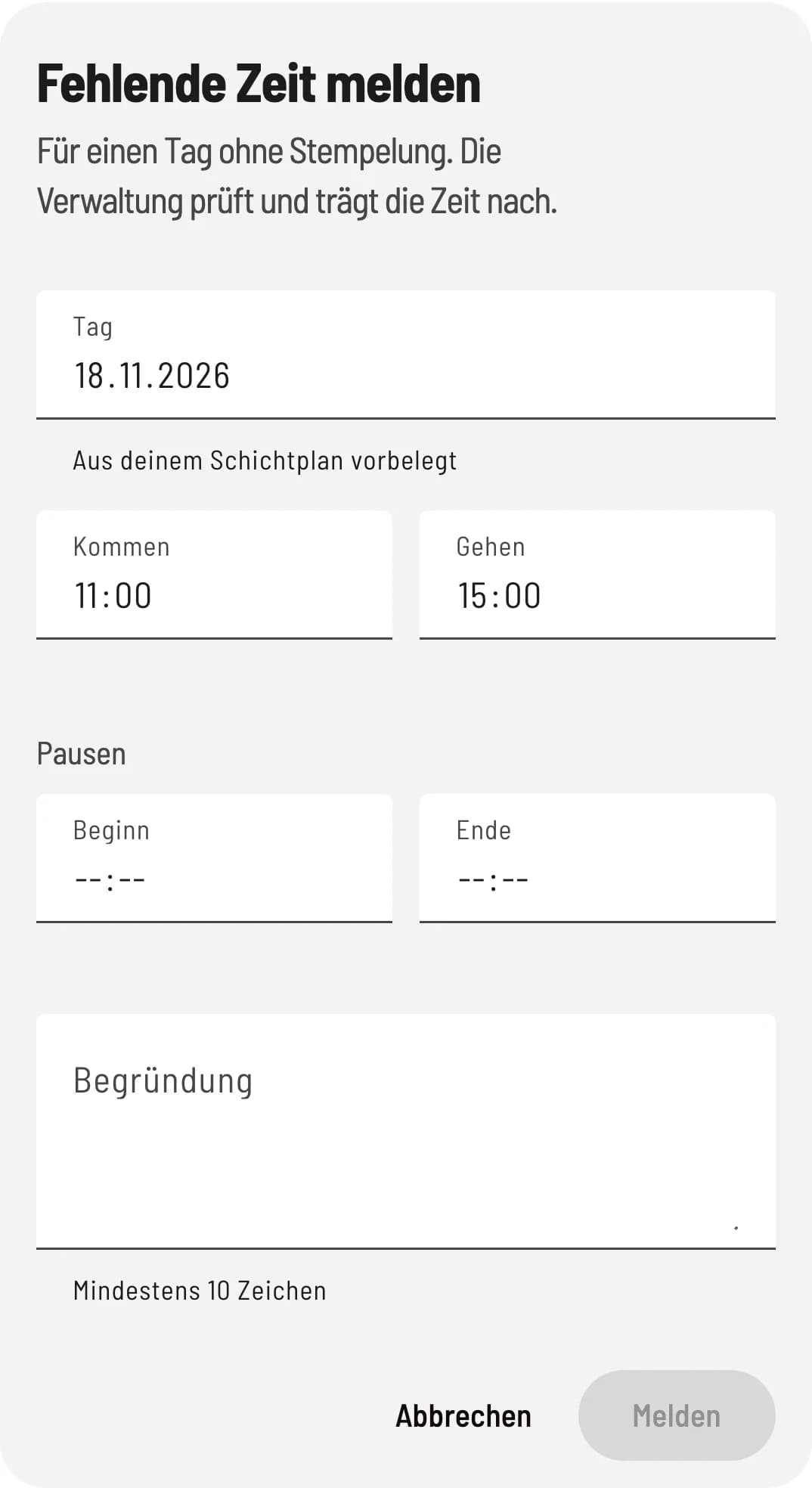
Report missing time
In the team section, tap Missing time under Overview or Times. Select the Day; if there was a shift, Clock in and Clock out are already pre-filled. Under Reason, write why the clock-in is missing (at least 10 characters) and tap Report.
In the Overview of the team section under Missing clock-ins, you will see your shifts from the last 14 days without working hours; Report time starts the report with the shift's times. In the POS app, the report appears under My data with the next update.
Deciding on the report
Management receives a notification. The report appears in the daily review as Request: missing time and in the Requests tab under Open correction requests with the Missing time badge. Approve creates the working hours with the reported times, marked as added upon request. You cannot enter different times here: in that case, reject the report and add the hours yourself, or approve it and correct the entry afterwards. The person is notified of the decision.