
Daily review: check a day's working times
Here is how you resolve open entries, requests, schedule deviations, and unstamped shifts day by day.
The daily review shows you what still needs to be done regarding working times for a day. You can find it in the Web desk under Employees in the Time tracking tab in the Day view. It opens with today.
Prerequisite: Time tracking is part of the Max plan and must be turned on. The owner and anyone with the permissions Use Web desk and Manage time tracking & wages can see the daily review. If you use a schedule, Employees leads you to the schedule first; then you click the Time tracking tab.
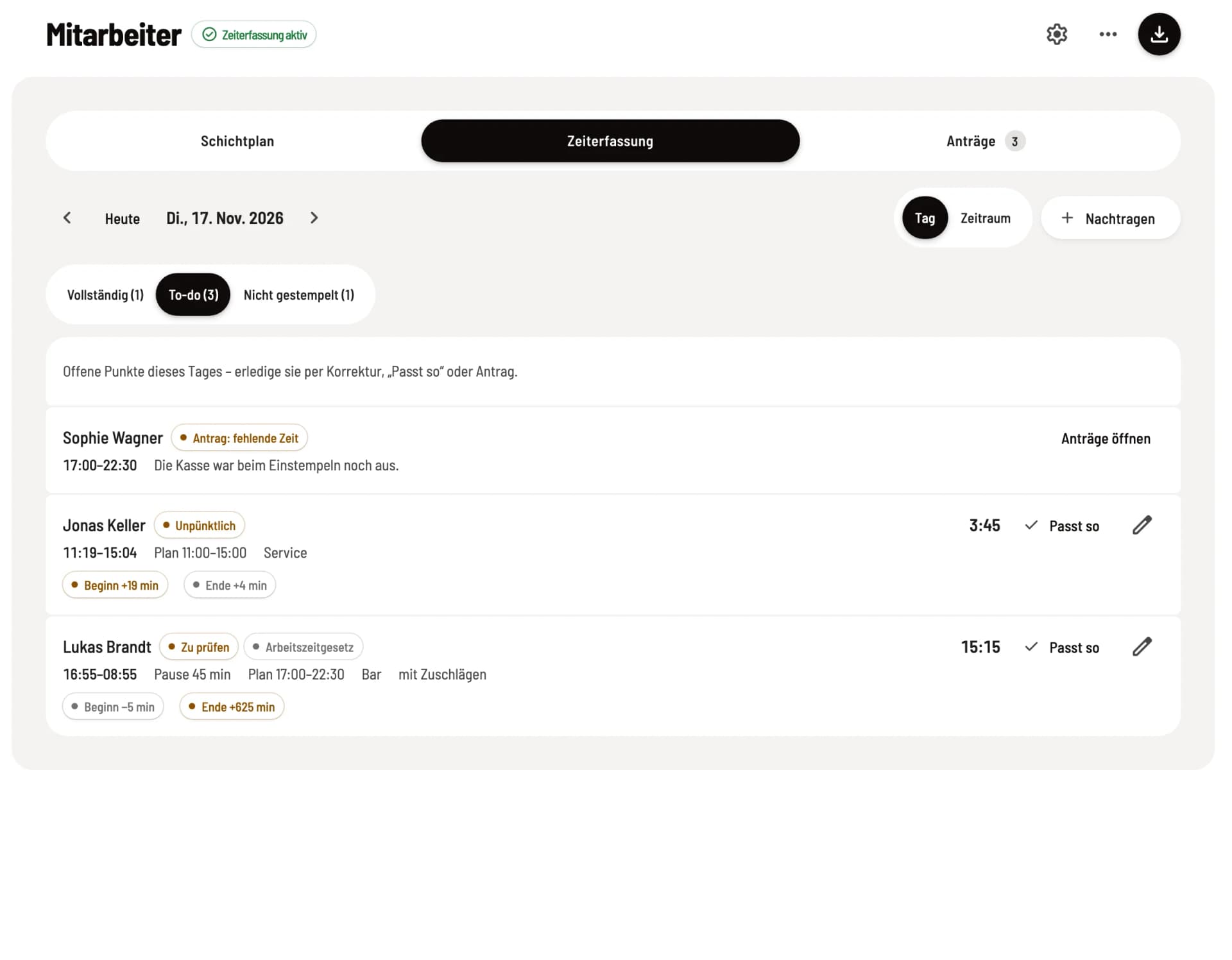
Select day
Use the arrows to browse day by day, Today jumps back. Clicking the date opens the calendar: days with open items show a red dot there, going back up to 62 days. For reports spanning multiple days, switch to Period at the top right, see Check working times.
Complete, To-do, and Not clocked in
At the top, you choose which rows you see. When opening a day, To-do is selected.
Complete: working times without open items, including ongoing entries for today with In progress.
To-do: everything that requires a decision. This always includes No end (the entry is still running after closing time), To review (automatically ended), Request open, Overlap, and missing time notices (Request: missing time). Depending on your settings, working time despite absence, Off schedule, Working Time Act findings, and times without a shift are added.
Not clocked in: published shifts without working time. This view is only available if you use a schedule.
If a shift belongs to a row, the deviation from the schedule is shown below it, such as Begin +19 min or End −10 min. From 15 minutes onwards, it is highlighted in color.
What you can do on a row
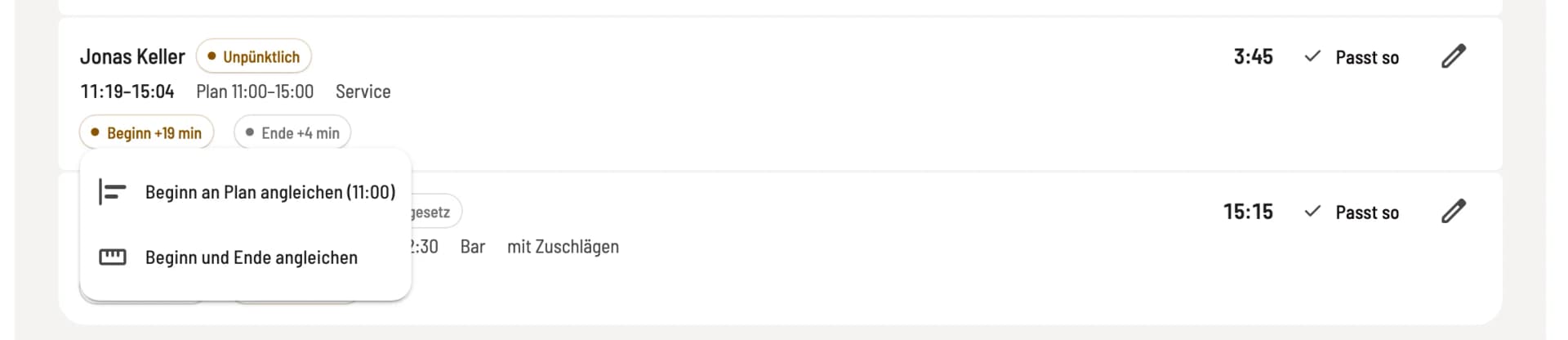
Align with the schedule
Click on a deviation and select Align start to schedule, Align end to schedule, or Align start and end. Servire takes the time from the published shift, whether earlier or later, and enters the reason itself. Afterwards, the row shows Changed by … on ….
Looks good: The time is correct, the item is done. Afterwards, the row shows Reviewed by … on …. The button is missing for No end, Request open, and Overlap; you correct the entry there or decide on the request.
Enter end: for entries that are still running after closing time. You specify End of work and a Reason.
Edit (pencil): change times and breaks, see Correct time entries.
Open requests: leads to the Requests tab in case of a missing time notice.
Not clocked in shifts
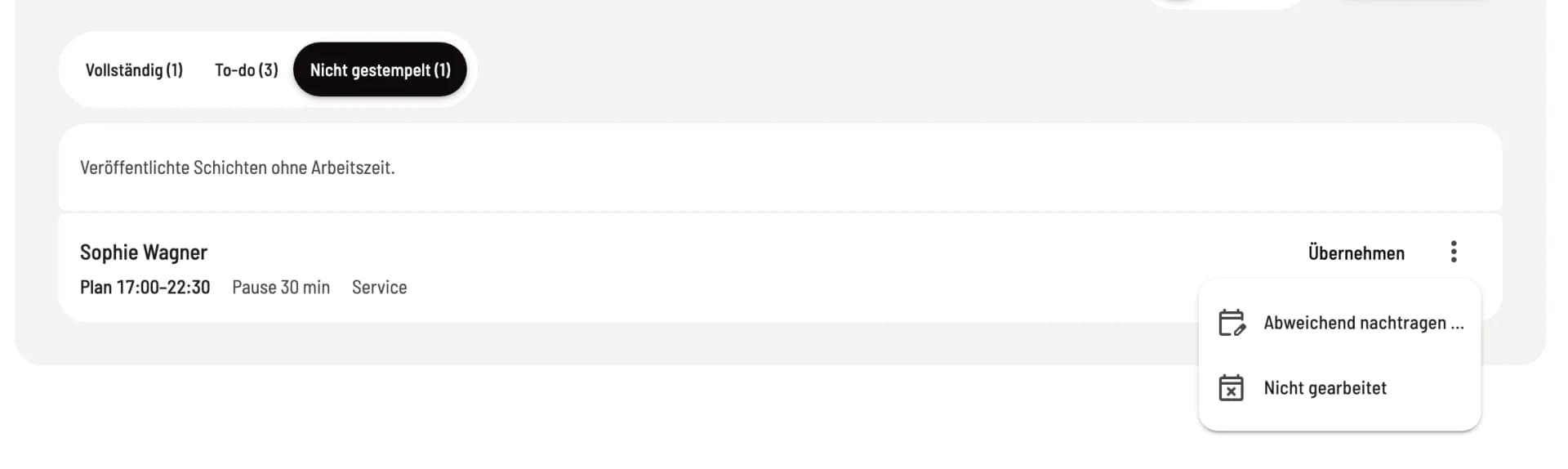
Take over or note
Take over enters the shift as working time, Take over all enters all at once. This is possible as soon as the shift is over and has a fixed end. Via ⋮ you select Add entry with deviation … if the times were different, or Not worked if the shift was cancelled. Remove note undoes the note.
When taking over, Servire subtracts the planned break, at least the statutory one. Because this break is not clocked, the wage export requests it later for confirmation. The entry is considered added subsequently, see Add forgotten working time.
Who finds out about this?
After adding subsequently, taking over, editing, aligning, and entering an end, the person receives the notification Working time edited, provided they have notifications turned on. There is no email for this. Looks good and Not worked do not trigger any notifications. Every change is logged in the entry's history and in the person's times.
Which items count as a to-do
In the Staff settings (gear icon at the top of the page), you define in the Working time tab under Daily review what additionally counts as a to-do: Working time despite absence (on by default), Off schedule from a 15-minute deviation, Working Time Act finding, and Clocked in without a shift (off by default). Scheduled but not clocked in determines whether unstamped shifts set a red dot in the calendar. Disabled items remain visible in gray on the row.
Entries without an end, entries to review, and overlaps block the wage export until you have resolved them. If a month has been handed over to the payroll office and locked, the daily review for that month is read-only, see Hand over wage export to the payroll office.
Your own working times are only checked and corrected by the owner. All other managers submit a request for this.