
Send documents automatically every month
Here is how you set up the Tax advisor card and let Servire send files to your firm on its own every month.
In the Web desk under Settings → DATEV Export, you define once in the Tax advisor card where your documents go. If you turn on monthly sending, Servire automatically sends the previous month to your firm on the 3rd of every month.
The card is available from the Solo plan up, including the trial period. It can be changed by anyone who has the Send to tax advisor permission.
Set up the card
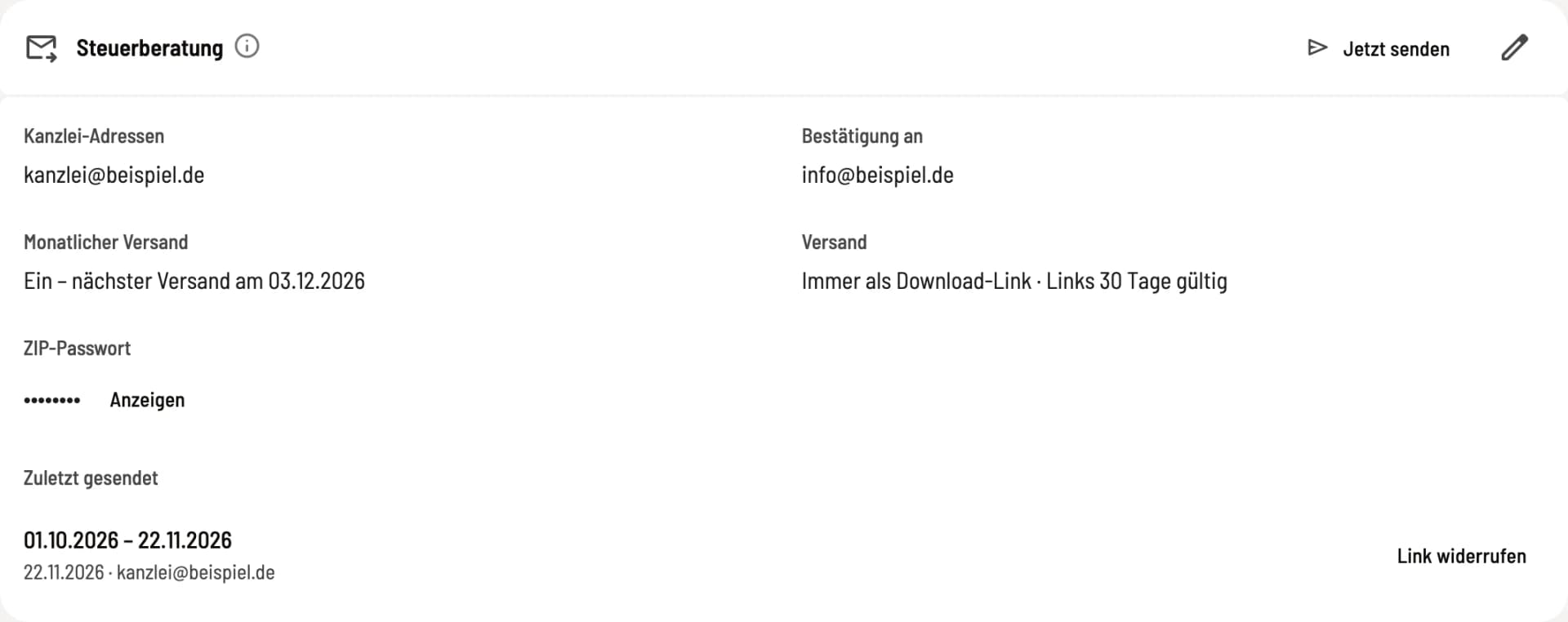
Step 1 of 2
Tax advisor card
The card shows firm addresses, confirmation address, monthly sending, sending method, and whether a ZIP password is set. Click on the pencil.
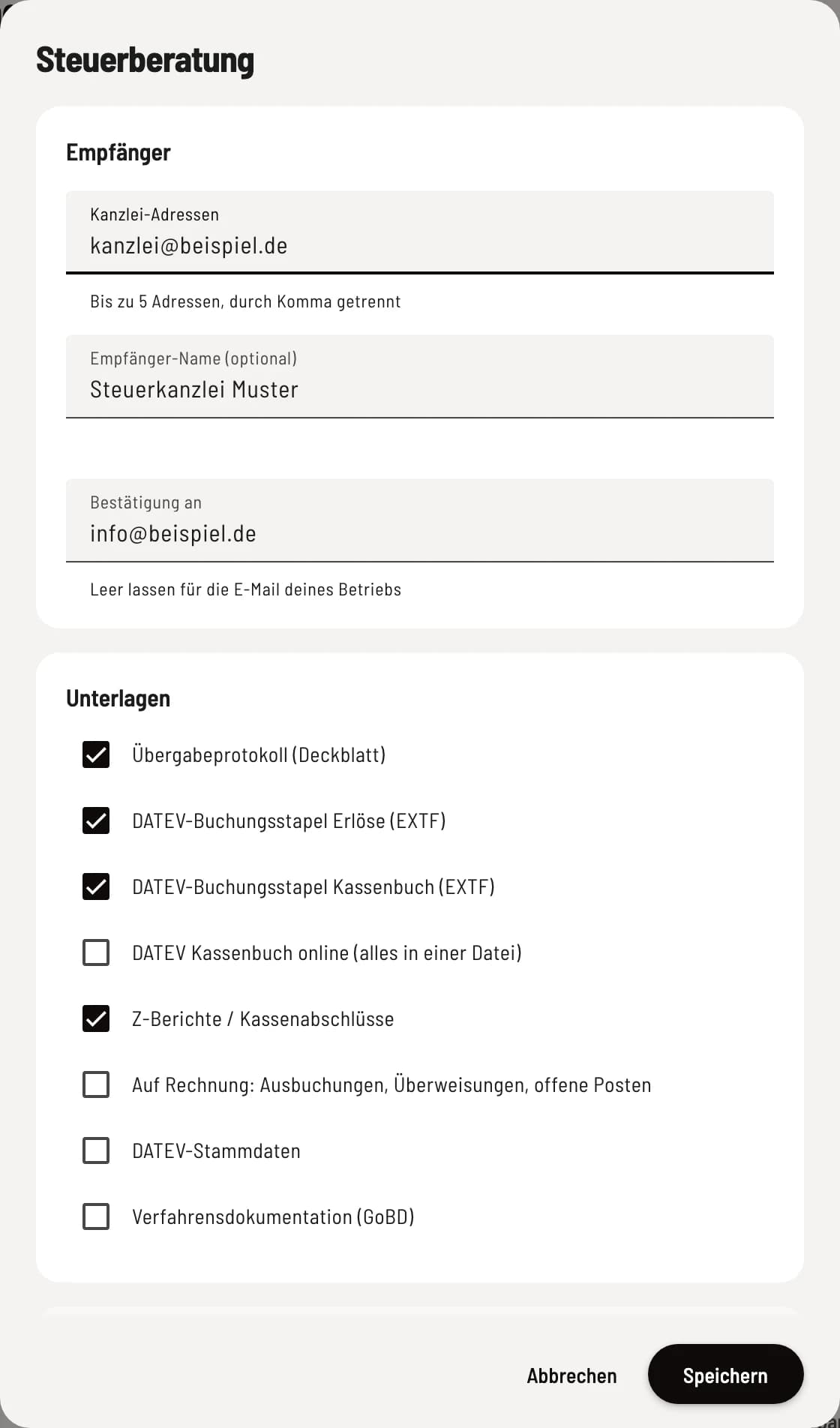
Step 2 of 2
Fill out the dialog
Enter addresses and documents. Below that come Monthly sending, Sending, and ZIP password.
Firm addresses: up to 5, separated by commas. Everyone receives the same email.
Recipient name (optional): for the salutation in the email.
Confirmation to: all confirmations go here. Leave blank for your business's email.
Documents: what goes along every month. What you need is listed in Send documents to your tax advisor.
Click Save. Servire reports every change by email to the confirmation address, and in case of a new confirmation address, to the old one as well.
Monthly sending
Turn on Monthly sending. The card will then show when the next sending will take place. On the 3rd of every month, the previous month goes out, for the first time the month in which you turn it on. Servire does not backfill older months. You send those manually if needed using Send now. After every sending, you receive a confirmation with month, recipients, and documents.
If something is missing
Before every sending, Servire checks the month like Check period. If a cash register closing cannot be posted, nothing goes to the firm. You receive an email about what is missing, and a reminder every week after that. Servire checks again every day and sends as soon as everything is complete. Notices like a gap in numbers do not stop the sending; they are included in the confirmation.
If you no longer have an active paid plan, sending is paused, and you will be notified. With a new plan, it continues starting from the then-current month.
Password and download link
Under Sending you choose As attachment or Always as download link. If the documents are larger than 9 MB, Servire always uses the link. Links are valid for 30 days or indefinitely.
With a ZIP password, all documents go out as an encrypted ZIP file via a download link, even when sending manually. This does not work as an attachment because Gmail and many corporate mailboxes block encrypted attachments. Give the password to your firm through another channel, such as the phone. You can view it in the card with Show.
Under Recently sent you see your last sendings. With Revoke link you make a download link invalid immediately.